The right-click menu
Both lists have a right-click menu, and they carry different things — because the tree is for finding your way around and the panel is where you act on items.
On a tree folder — navigation and info
Right-click a folder in the tree and you get the harmless actions: look at it, ask the system about it, copy its path, or tell us about it for the knowledge base. Nothing here deletes or moves anything — those live in the panel, next to the item itself.
| Action | What it does |
|---|---|
| Show in Finder | Reveals the folder in Finder (Explorer on Windows, Files on Linux). |
| Get Information | Opens the system's info window for the folder. |
| Copy Path | Copies the full path to the clipboard, handy for support tickets or the terminal. |
| Report | Describe this folder for the knowledge base, or flag its entry as wrong. |
On a panel row — everything, including the destructive actions
Right-click a file or folder in the contents panel and you get the same info actions plus the ones that change things. The same menu opens from the More button on a selected item's details card.
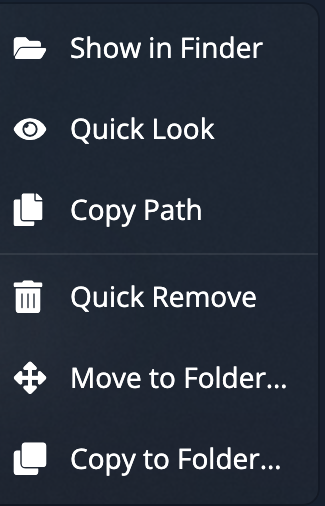
| Action | What it does |
|---|---|
| Show in Finder | Reveals the item in its natural habitat. |
| Quick Look | Pops a preview without opening the file (macOS). Files and packages only — a plain folder has nothing to preview. |
| Copy Path | Copies the item's full path to the clipboard. |
| Quick Remove | Sends the item straight to the Trash, no confirmation window, no effect on your ticked selection. Fast, but respect it. |
| Move to Folder… | Pick a destination and the item moves there immediately. See Moving items. |
| Copy to Folder… | Same, but copies; the original stays where it is. |
On protected rows the destructive entries (Quick Remove, Move) are disabled, for the same reasons their checkboxes are. See Safety verdicts & bans.
Quick Remove skips the confirmation window: the item goes to the Trash the moment you click — except when it holds files that live only in the cloud, where it asks first. It can still be rescued from the Trash, but for anything you're not certain about, tick it and use the Delete flow so you can read the summary first.
Didn't find your answer?
We're happy to help. Open a ticket and we'll get back to you.