Safety verdicts & bans
The scariest part of cleaning a disk is not knowing what a folder does. Disk Space answers that question before you act: every known folder carries a shield with a verdict (safe, careful, or keep) and truly critical locations are barred outright.
The three verdicts
Safe to delete
Caches, temporary files, rebuildable data. Apps recreate these when they need them. Emptying them costs you nothing but a slightly slower next launch.
Delete with care
Removable, but with a consequence: re-downloading, re-indexing, or losing something you might still want. Read the card's advice first.
Don't delete
Apps or the system rely on this folder. The app bars it so it can't end up in a delete by accident — its checkbox in the panel won't tick.
The verdict card
Select a folder and the card below the chart shows its verdict as a colored badge, followed by a plain-language description of what the folder is for and a "How to clear it" section with practical advice.
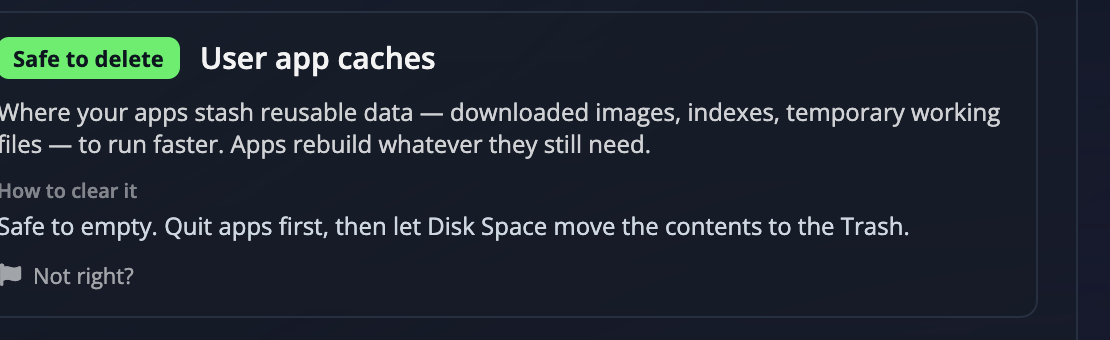
The verdicts come from the folder knowledge base, a curated, human-reviewed catalogue, not a guess. If a folder isn't known yet, the card invites you to describe it for other users instead.
Verdicts flow downwards, sensibly
You'll see verdicts on folders nobody reported directly. That's intentional:
- A folder marked safe passes "safe" down to everything inside it: if the whole cache folder can go, so can its contents.
- A folder marked don't delete keeps its contents protected too.
- A folder marked safe is downgraded to "delete with care" if something inside it was specifically flagged as risky. Deleting the parent would take that child with it, so the app warns you.
The two bans
Where a shield is a judgement, a ban is a refusal: the app will not delete this. The two differ only in whether you can lift it.
| Ban | What it means |
|---|---|
| Red ban | Core system folder. The operating system itself (system folders, boot files, your home folder's root). Never deletable; no setting changes that. |
| Grey ban | Protected location. App support areas like the Library folder, Program Files, or hidden configuration folders. Barred by default because deleting blindly here breaks apps, but the override switch below lifts it. |

Grey bans aren't dead ends. When the knowledge base knows a specific child is safe, that child is freed even though its parent stays protected. The classic example: the Library folder stays barred, but Library → Caches inside it is marked safe and can be emptied, often reclaiming gigabytes.
You don't have to open a folder to find that out. When a barred folder has something clearable inside it, its ban carries a small green or amber dot in the corner, so the reason to look is visible from the outside.
The override switch. Settings has an "Allow deleting all non-system files & folders" toggle that lifts grey bans and "don't delete" verdicts for experienced users. Red-banned system folders stay barred regardless. Leave it off unless you know exactly why you're turning it on.
When a checkbox won't tick
A disabled checkbox always has a reason. Hover it and the tooltip spells it out: "Critical system location", "Marked do-not-delete", "Hidden configuration folder", or simply that the system needs those files to function.
Didn't find your answer?
We're happy to help. Open a ticket and we'll get back to you.