Moving items
Not everything that clogs your disk deserves to die. Old projects, video archives, photo libraries: move them to an external drive instead: the files survive, your disk breathes again.
When to move instead of delete
- Big files you want to keep but rarely open: footage, backups, finished projects.
- Folders with an amber "delete with care" verdict where you'd rather play it safe.
- Anything you'd like off this disk now and sorted out properly later.
Moving the selection
Tick the items in the contents panel (the same checkboxes used for deleting — walk the tree to a folder, tick what you want inside it, and your selection follows you across folders) and press the blue Move button.
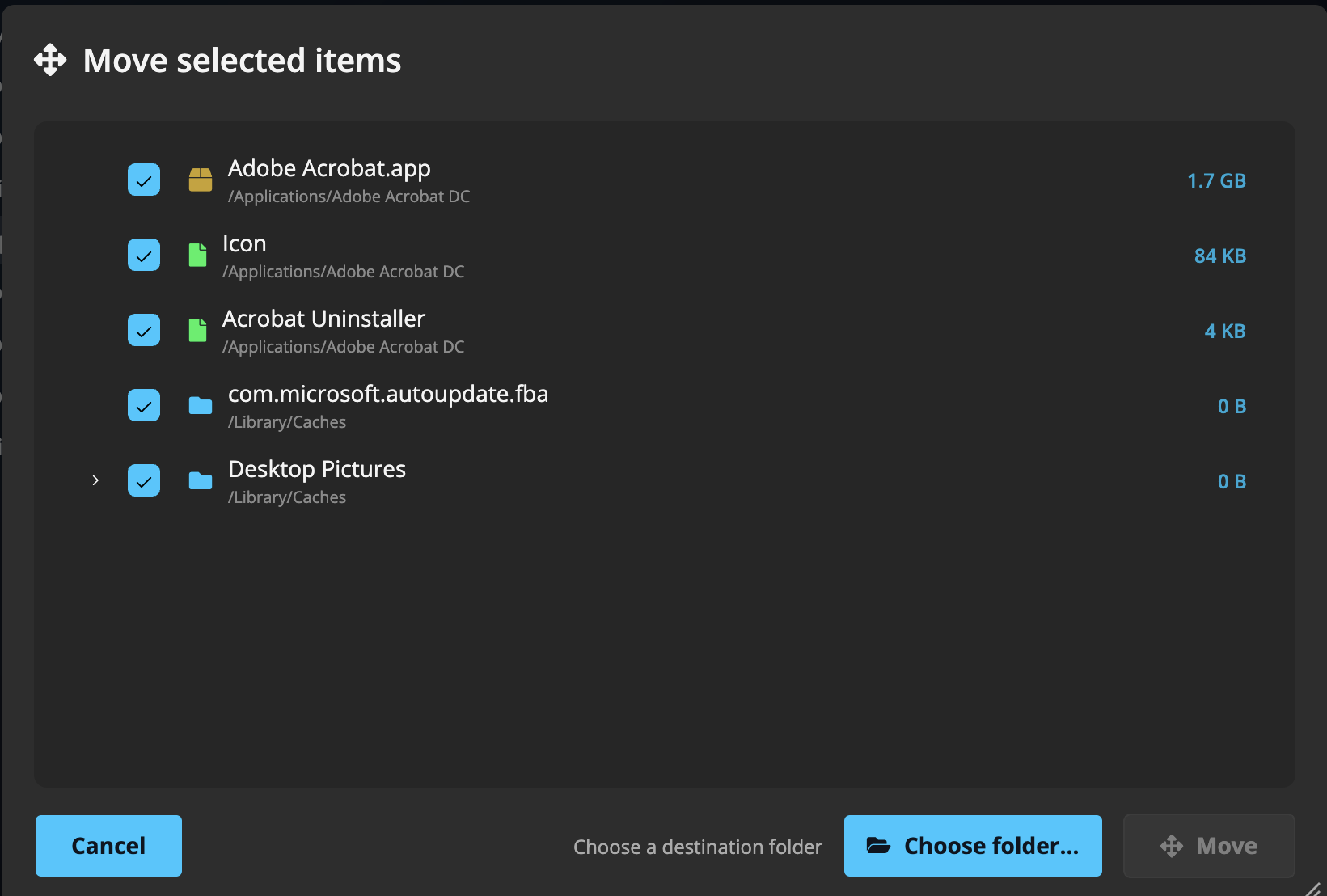
- Review the selection tree and untick anything that shouldn't travel.
- Click Choose folder… and pick the destination, for example a folder on an external drive. The Move button stays disabled until a destination is chosen.
- Press Move and watch the progress bar ("Moving…" → "Done").
Space is only freed when the destination is a different disk. Moving a folder to another place on the same disk reorganizes it but reclaims nothing.
Single items via right-click
The panel's right-click menu offers Move to Folder… for one item without touching your ticked selection, and Copy to Folder… when you want a duplicate instead; the original stays put.
Items in iCloud Drive and OneDrive can't be moved
Move is unavailable for anything inside a cloud-synced folder, and the button is disabled rather than failing later. That covers iCloud Drive and OneDrive, and it also covers Desktop and Documents when you have macOS "Desktop & Documents Folders" syncing turned on, which puts those folders under iCloud even though they still look like ordinary local folders.
The reason is that those files belong to the sync service, not to us. It can move, re-download or discard a file at any moment, including while a move is halfway through, and there's no way for another app to relocate an item out of a synced folder as one safe step. So we don't try. To move something out of a synced folder, use Finder or File Explorer, which the sync service cooperates with, or turn syncing off for that folder first.
Deleting still works normally on synced items, and so does copying anything that's downloaded.
Cloud-only files are never downloaded behind your back. A file that lives only in the cloud has no data on this disk. Copying one would have to download it in full first, which fills up the very disk you're clearing. If a selection contains cloud-only files, Disk Space stops and tells you instead of quietly pulling gigabytes down.
Moved is moved. Unlike deleting, moving doesn't go through the Trash; the files are at the destination, not in a safety net. Double-check the destination before pressing Move, especially on network drives.
Nothing is removed until the copy is verified. Moving to another disk copies first, checks that every file and byte arrived, and only then deletes the original. Cancel at any point and the original is left exactly as it was; the half-finished copy is thrown away.
Didn't find your answer?
We're happy to help. Open a ticket and we'll get back to you.