Icons & colors
Every symbol in Disk Space means one specific thing. This page is the complete key. Bookmark it until the colors become second nature.
The color language
Four colors carry the meaning throughout the app:
| Color | Meaning |
|---|---|
| Cyan | Folders, drives, and things you can interact with. |
| Green | Files, "safe to delete", go-ahead actions like Start scanning. |
| Amber | Caution: "delete with care" and warnings. |
| Red | Danger: "don't delete", barred system folders, and the Delete button itself. |
Icons in the tree
| Icon | Meaning |
|---|---|
| Cyan folder | A folder. Click its arrow to look inside. |
| Green file | A single file. |
| Dark yellow box | A package: an app or a library that is a folder underneath, but is treated as one sealed item. You can't open it in the tree, and it's removed whole or not at all. macOS only. |
| Grey ellipsis | The "+N smaller items" summary row bundling a folder's long tail of small files. |
| Cloud badge | Shown on a file's icon when the file is stored in the cloud and takes 0 bytes on disk. The size shown is its logical size; deleting it won't free local space. |
| Amber lock badge | On the corner of a folder's icon: this folder could not be read, because permission was denied or the volume is unavailable. Its size column says so rather than showing a misleading 0 B. This is the only place a lock appears. |
| Greyed row | A hidden file or folder (dot-prefixed). Often configuration data, so check its verdict before touching it. |
| Dimmed row | A folder that wasn't part of the scan, shown only for context so you can see where the scanned folder sits. Nothing to select. |
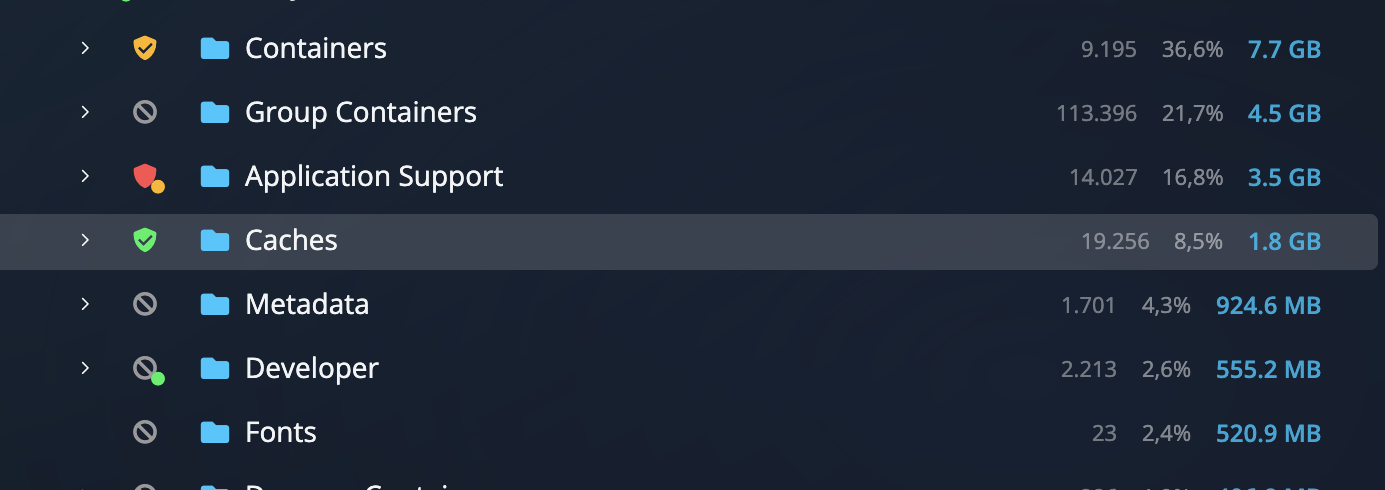
The marker column (verdicts & bans)
The leftmost gutter of each row can carry one small marker. Two shapes, two questions: a shield is a judgement about what the folder is and how much care it wants, and a ban is a flat refusal, meaning the app will not delete this whatever you think of it. In order of importance:
| Marker | Meaning |
|---|---|
| Red ban | Core system folder. The operating system lives here; the app will never delete it, no matter what. |
| Green shield | Safe to delete. A known folder whose contents can be removed without harm (apps rebuild it as needed). |
| Amber shield | Delete with care. Removing it is possible but has consequences worth reading first. |
| Red slashed shield | Don't delete. A known folder that should stay. The slash means you don't have to tell the colors apart to read it. |
| Grey ban | Protected location (app support folders, program files, hidden configuration). Barred by default; hover for the reason. |
No marker at all means the folder isn't in the knowledge base yet and nothing blocks it. You decide. The verdicts and bans are explained in depth in Safety verdicts & bans.
A ban can also carry a tiny green or amber dot in its corner. That means the folder itself is closed to you, but the knowledge base knows something inside it is safe or clearable, so it's worth opening rather than skipping.
Icons in the targets column
| Icon | Meaning |
|---|---|
| Hard drive | An internal disk, with its usage bar and "used · free" line. |
| Mount | An external, removable or network volume. |
| / / … | The suggested folders each carry their own glyph: Home, Downloads, Desktop, Documents, Movies, Pictures, Music. |
| Broom | Cache and temporary folders, usually the most rewarding place to clean. |
| Play | Appears when you hover a target row: start scanning that target right away. |
Buttons in the bottom bar
| Button | What it does |
|---|---|
| Start scanning | Scans the selected drive or folder. See Scanning your disk. |
| Cancel | Stops a running scan, keeping everything measured so far. |
| Move | Moves the checked items to a folder you choose. See Moving items. |
| Delete | Deletes the checked items (Trash first, unless you say otherwise). See Deleting items. |
Move and Delete stay disabled until at least one item is checked; the label next to them counts what's selected, for example "3 items · 4.2 GB selected".
Didn't find your answer?
We're happy to help. Open a ticket and we'll get back to you.