Welcome to Disk Space
Your disk is full and you want it fixed. Disk Space shows you exactly what is taking up the room, tells you what is safe to remove and what isn't, and then deletes or moves it for you. Think of it as a map of your disk with a guide standing next to it.
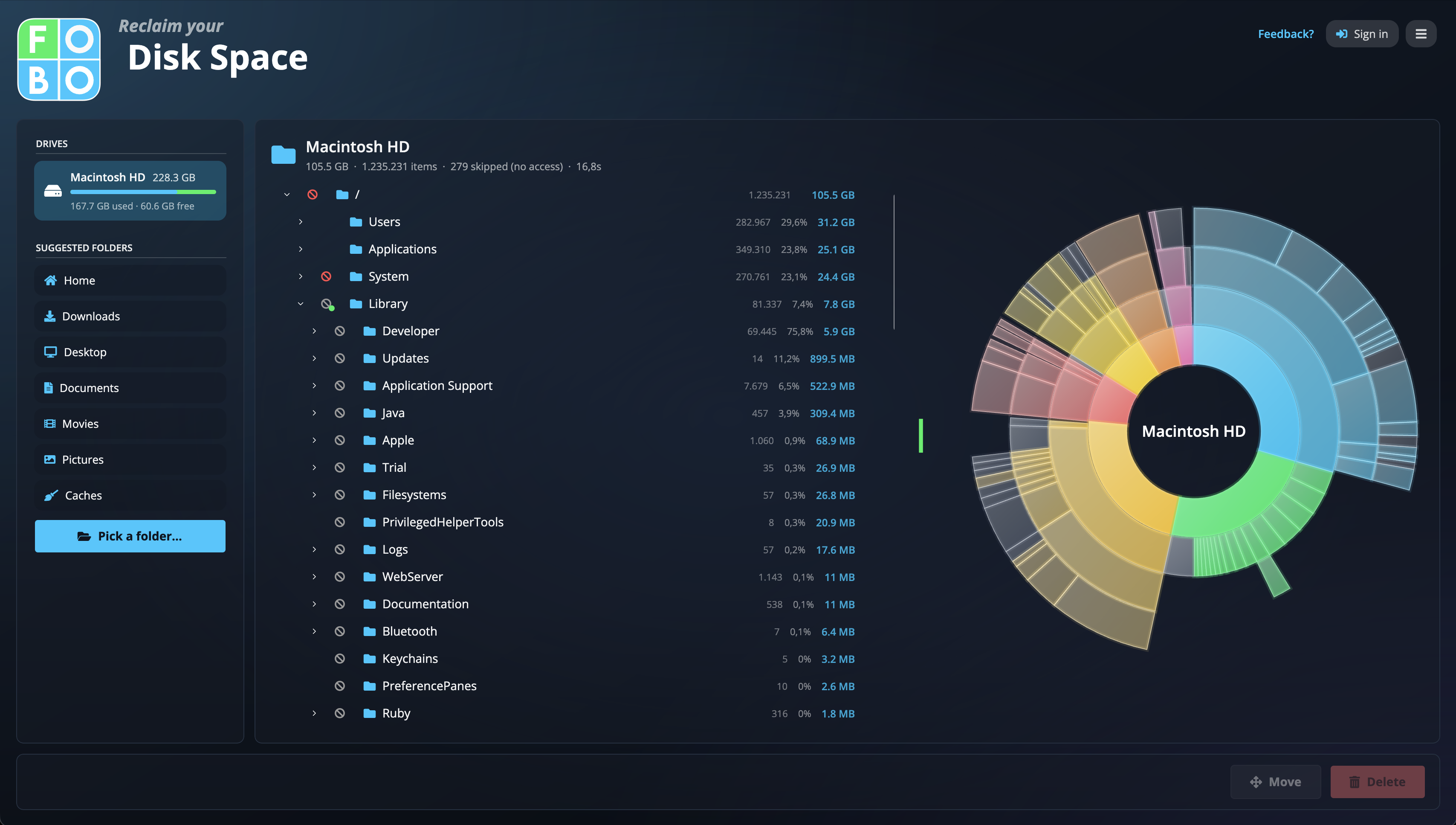
Cleaning a disk by hand is nerve-racking: the biggest folders often have cryptic names, and deleting the wrong one can break an app or the system itself. Disk Space takes both problems away. It finds the big stuff for you, and it puts a clear safety verdict next to it before you touch anything.
The three things you'll do
1. Scan
Pick a drive or folder and let the app measure everything inside it, biggest first. See Scanning your disk.
2. Understand
Browse the results as a tree and a round chart, and read what each folder is for. See The tree & the chart.
3. Clean up
Tick the items you don't need and delete them, or move them to another disk. See Deleting items.
How the app keeps you safe
Every folder in the results carries a small colored marker. A shield is a verdict: green means safe to delete, amber means delete with care, and red and slashed means don't delete. Folders the system itself depends on show a red ban instead and can't be selected for deletion at all. These verdicts come from a curated folder knowledge base that explains, in plain words, what each known folder is for and how to clear it.
Nothing about your files leaves your computer. Scans run entirely on your machine. The app only downloads the shared folder explanations and matches them locally.
New here? Start with these
- Full Disk Access: on a Mac, grant this once so the scan can see everything without a prompt for every folder.
- Scanning your disk: pick a target and press the green button.
- Icons & colors: a one-page key to every symbol you'll see.
- Deleting items: how the Trash-first delete works and how to reclaim the space.
Didn't find your answer?
We're happy to help. Open a ticket and we'll get back to you.