Deleting items
This is the payoff: pick what you don't need, press Delete, get your space back. By default everything goes to the Trash first, so a change of heart costs you nothing.
The tree navigates, the panel selects
Disk Space keeps the two jobs apart, on purpose. The tree on the left is for finding your way around: it shows folders only, and clicking one is like opening it. The contents panel that appears beside it lists what is inside that folder — files and subfolders — and that panel is the only place you choose things to delete.
So the shape of the work is: walk the tree to a folder, then tick what you want in the panel.
Ticking things in the panel
Each row in the panel has a checkbox. Tick a file to remove that file; tick a folder to remove that folder and everything in it. Select all and Select none at the top of the panel do the whole list at once.
This is how you empty a folder without deleting the folder itself. To clear ~/Library/Caches — where apps keep files they can rebuild — open Caches in the tree and Select all in its panel. Every cache inside it is ticked, but Caches itself is not in the list, so it stays. That matters: applications expect to write into it, and some misbehave if it vanishes. The same holds one level down — open a single app's cache folder and Select all to empty just that one.
Delete removes what you can see. The panel does not list hidden files or files that live only in the cloud, so those can never be ticked by accident — it tells you how many it is holding back at the bottom. To reach them, turn the matching filter on in Settings first.
Your selection follows you
Ticking things does not clear when you walk to another folder. The job of a disk tool is to sweep up waste scattered across the disk, so the selection is one running list that spans folders. Every folder in the tree shows an amber count of how many ticked items are inside it — the trail back to what you marked.
The total sits in the bar at the bottom, for example "14 items · 22 GB selected". Click it to open the full list, grouped and with paths, where you can remove anything from the selection with the next to it. The to the left of the total clears the whole thing.
Chasing free space? The tree is already biggest-first. A few green-shielded cache folders near the top usually beat hunting hundreds of small files. Green means safe to delete; a red ban means the row can't be selected at all — hover it to see why.
The Delete window
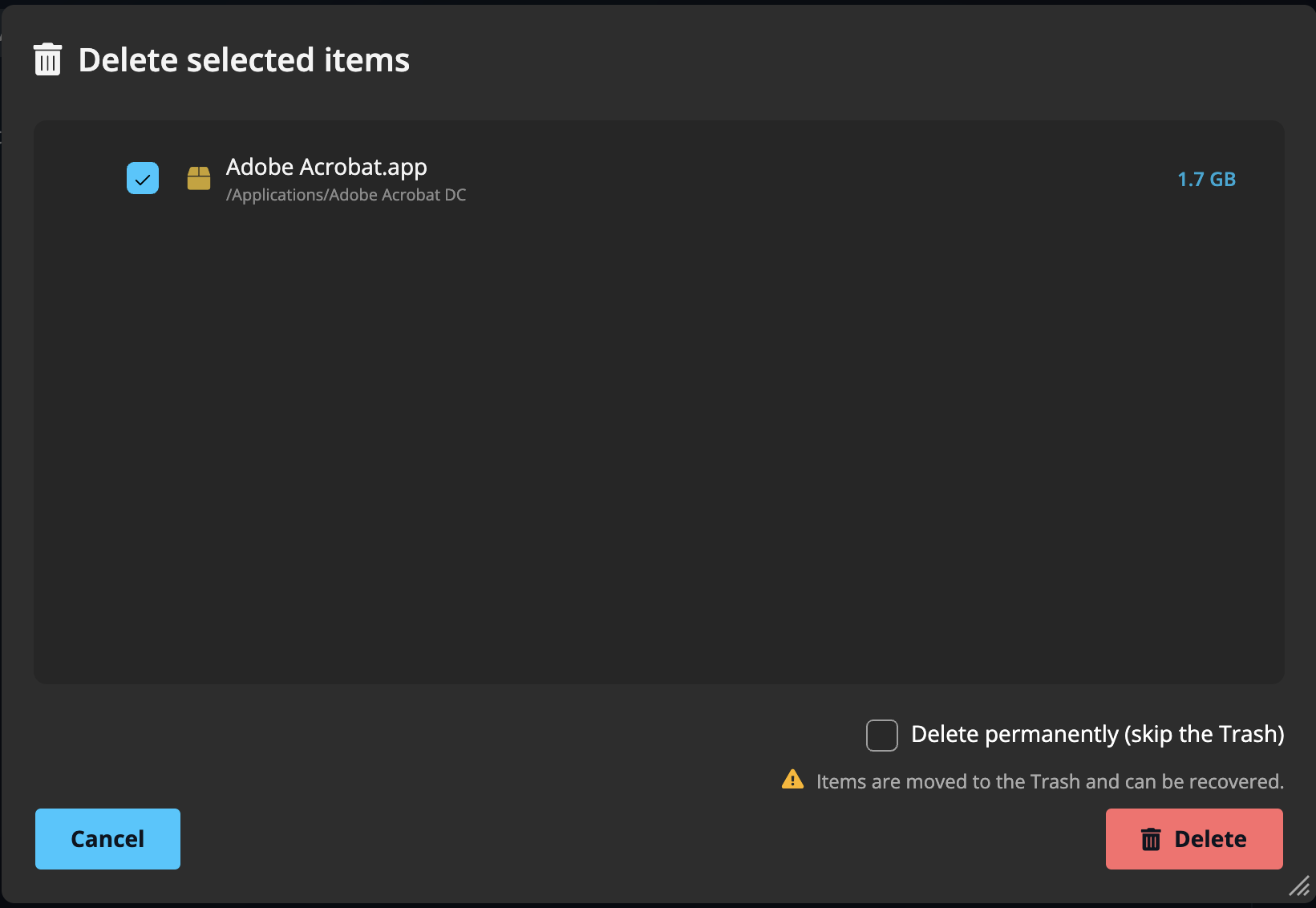
Press the red Delete button and a confirmation window lists exactly what's about to go, as a tree with sizes and the folder each item sits in — a last calm look before anything happens. Untick anything you want to spare.
Trash first, or straight away
- Default: items are moved to the Trash (Recycle Bin on Windows) and can be recovered. The window says so: "Items are moved to the Trash and can be recovered."
- Delete permanently (skip the Trash): tick this checkbox and items are removed outright. The warning changes to "Items will be deleted permanently. This cannot be undone." And it means it.
Trash isn't free space yet. Items in the Trash still occupy the disk. To actually reclaim the room, empty the Trash afterwards, or use the permanent option when you're certain.
Cloud files are deleted everywhere. If a folder you're deleting holds files that live only in iCloud, OneDrive or Dropbox, Disk Space warns you first: removing them takes them off every device signed in to that service, and frees no space on this one. You choose whether to go ahead.
While it runs
The window shows a progress bar and "Deleting…" while it works; you can cancel mid-way. When it's done, close the window and the deleted rows are gone. Run Scan again whenever you want fresh totals.
The quick way
For a single item you're sure about, right-click its row in the panel and choose Quick Remove: it goes straight to the Trash, no window, no effect on your ticked selection. It can still be rescued from the Trash. This is also the way to remove a folder you can't otherwise reach — Quick Remove takes the folder and its contents together. See The right-click menu.
A few folders are never removable at all, whatever you do — Downloads, Desktop and Documents among them: the system recreates them, so removing one silently reverts and you'd get no space back. You can still empty their contents.
Didn't find your answer?
We're happy to help. Open a ticket and we'll get back to you.