The Add Field window
This window opens when you click Add Field. It's like a stationery drawer: first you choose the right kind of box for your question, then you write the label on it.
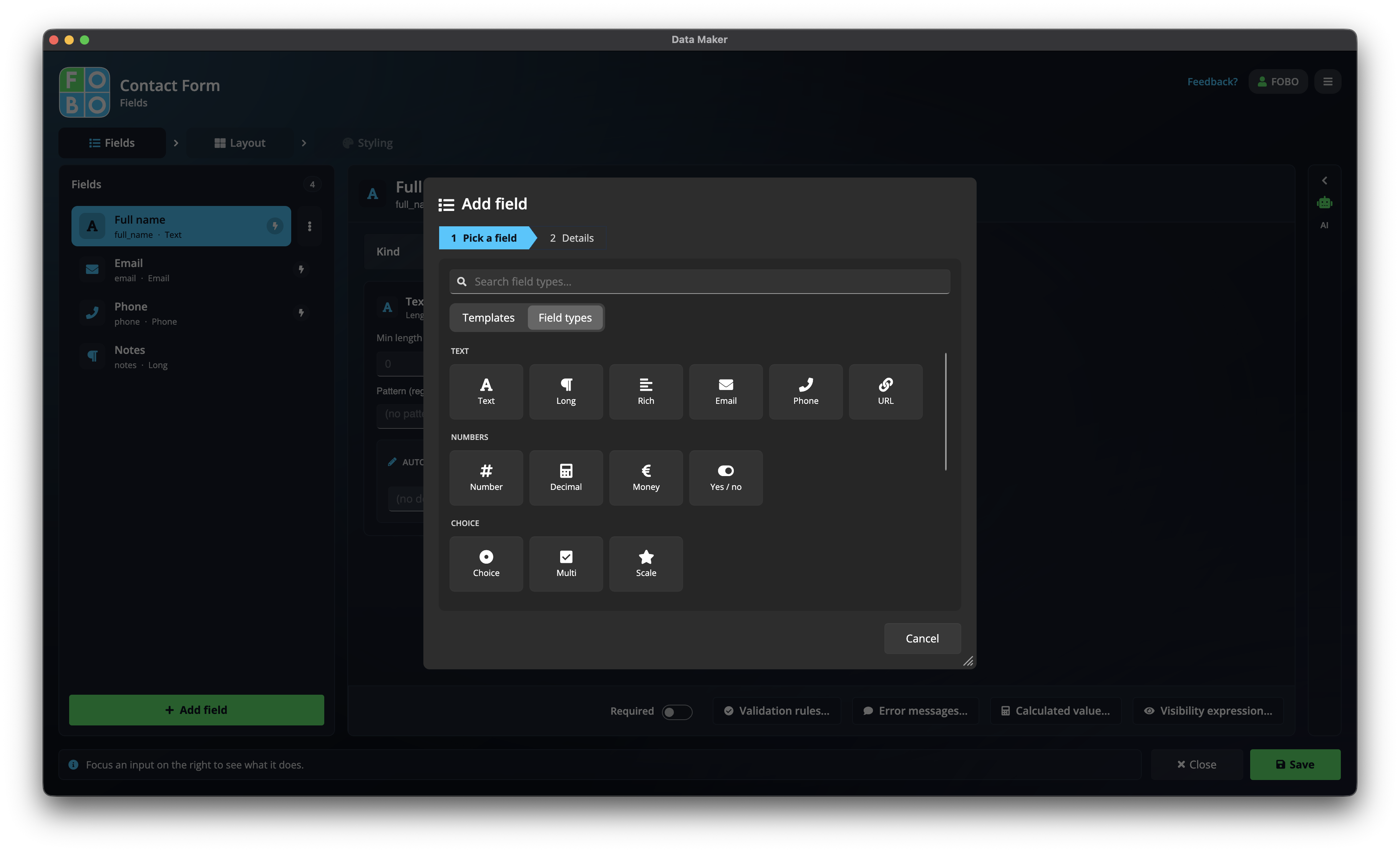
You reach this window from the Fields tab by clicking Add Field. It works in two simple steps.
Step 1: pick the type of question
The window opens on a gallery of choices. A search box at the top finds one by name, and a toggle switches between two views:
- Templates: ready-made fields like "Full name" or "Email address", already labelled and set up. The quickest start.
- Field types: the raw building blocks, grouped into Text, Numbers, Choice, Date, Files and Other. Pick one when no template fits.
Choosing the right type matters because it decides how people answer: typing freely, picking from a list, tapping a date, and so on. Here are the common ones in plain terms:
| Type | Good for, with an example |
|---|---|
| Short text | A single line: a name, a town, a reference number. |
| Long text | A bigger box for a few sentences, like "Tell us about your request". |
| Number | Digits only: quantity, age, a price. |
| Choice from a list | Pick one (or several) from options you set, like "Which size? S / M / L". |
| Yes / no | A simple tick or switch, like "I agree to the terms". |
| Date | A calendar to pick a day: a booking date, a date of birth. |
| Rating or scale | Stars or a 1–10 scale, perfect for a satisfaction survey. |
| Image upload | Let people attach a photo: a damage report, a receipt. |
| Signature | A box to sign with finger or mouse: a sign-off or consent. |
There are a few more types beyond these, but they all work the same way: pick the one that matches what you're asking.
Step 2: label it and name it
Once you've chosen, give the question a label (the wording people read, like "Your email address"). A name is filled in for you automatically (a tidy behind-the-scenes version of the label), which you can change as long as it stays unique. You can also add an optional description that shows as a help hint. Everything else (the choices for a list, how many stars for a rating) is tuned afterwards on the Fields tab.
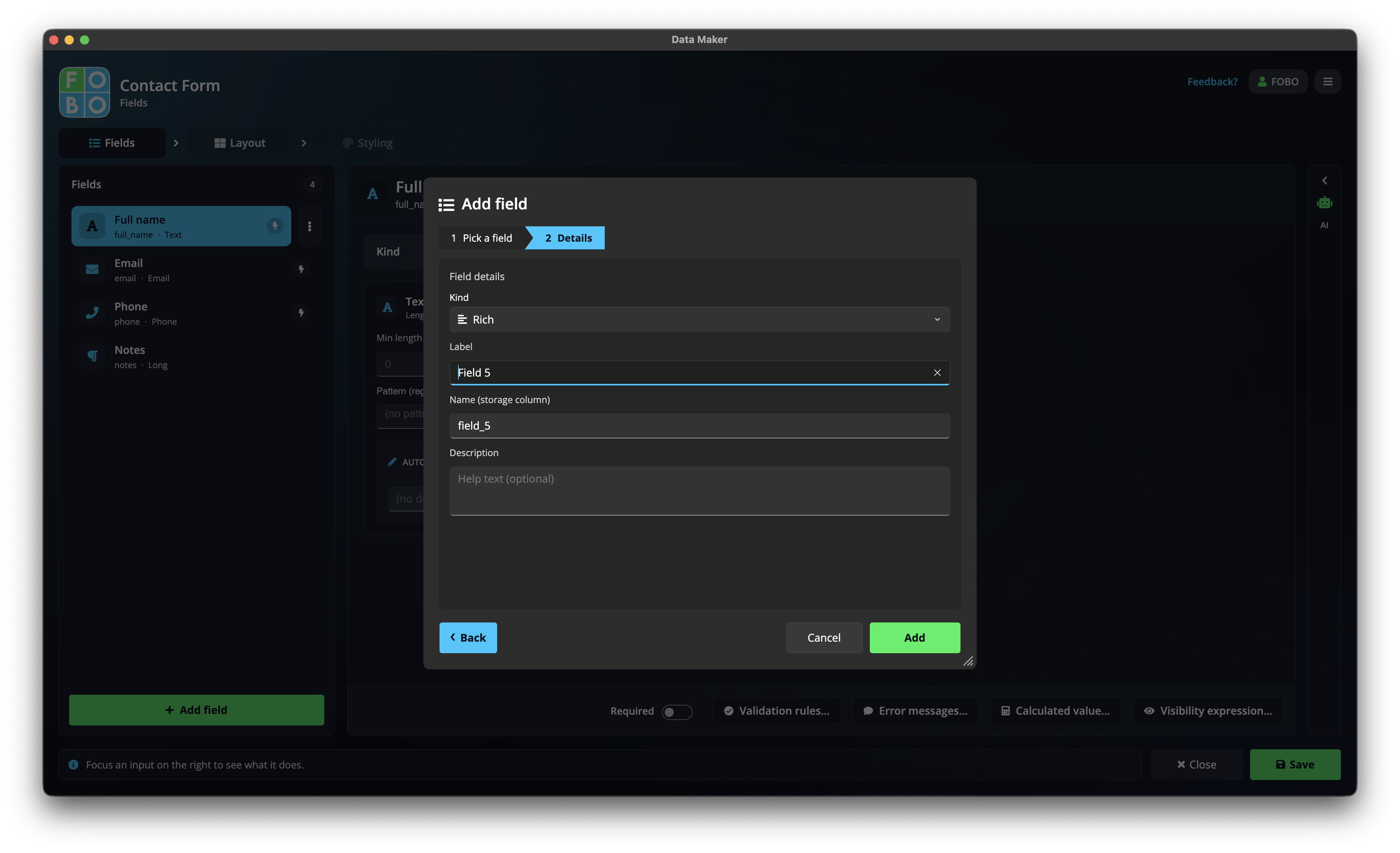
Not sure which type fits? Pick the closest one and add it. You can change its settings later, and the help bar on the Fields tab explains each option as you go.
After you've added it
Your new question appears in the list on the Fields tab. From there you can:
- Add checks and error messages so answers come in correctly.
- Set show/hide or calculate rules to make the form smarter.
Didn't find your answer?
We're happy to help. Open a ticket and we'll get back to you.