The Form Builder
This is the workshop where you put a form together, a bit like a desk with three drawers: one for your questions, one for arranging them on the page, and one for the colours and look. You move between the three as you go.
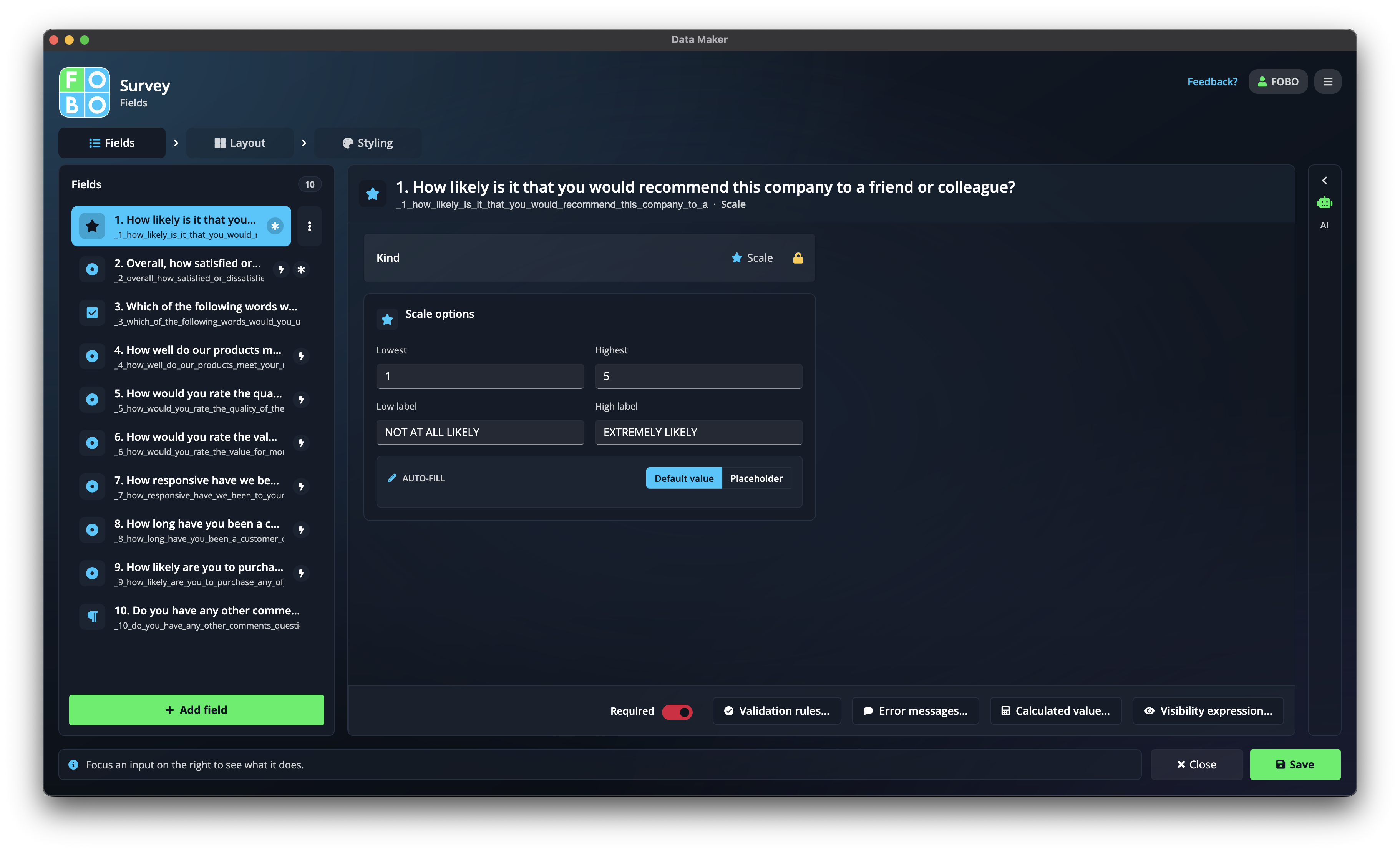
You land here whenever you create a new form or click Edit on a form card. Along the top you'll see the form's name and three tabs. Each tab is a different part of the job, and you can hop between them freely: add a question, see where it sits, tweak the colour, then come back.
The three tabs
Think of building a form as a short journey. You usually start on the left and work right, but nothing stops you going back.
1. Fields
The questions themselves: a name box, a date, a yes/no, and so on. This is where you decide what you're asking. See Adding fields.
2. Layout
How the questions are arranged on the page: grouped, side by side, split across pages. This is the where. See Arranging the page.
3. Styling
The colours, fonts, and overall look so the form feels like yours. This is the how it looks. See Look & feel.
The name pill at the top
At the top of the builder is a little pill showing your form's name. Click it to open a small box where you can change the name and add a short description (a note to yourself about what the form is for). The name is what you'll see on your shelf back on the Home screen, so it's worth making it clear.
Saving and leaving
Each tab has its own Save and Close buttons at the bottom, with a small status line next to them that tells you whether you have unsaved changes.
| Button | What it does |
|---|---|
| Save | Locks in your changes on the current tab. The status line confirms it's saved. |
| Close | Leaves the builder and takes you back to the Home screen. |
Save before you leave. If you close with unsaved changes, you'll be warned first. Hitting Save on a tab keeps your work safe so you don't lose anything when you switch away or close.
Need a hand? Ask the assistant
The builder has an AI assistant tucked alongside it. You can describe the form you want in plain words (for example, "a booking form with a name, date, and number of guests") and it will draft the questions for you, or change ones you already have. See The AI assistant.
Not sure where to begin? Start on the Fields tab and add your questions first. Layout and Styling are much easier once you can see what you're working with.
Didn't find your answer?
We're happy to help. Open a ticket and we'll get back to you.