Moving your data
A guided way to move your forms and entries into a different storage format, like moving house, where you pack everything up and it's set up the same way in the new place.
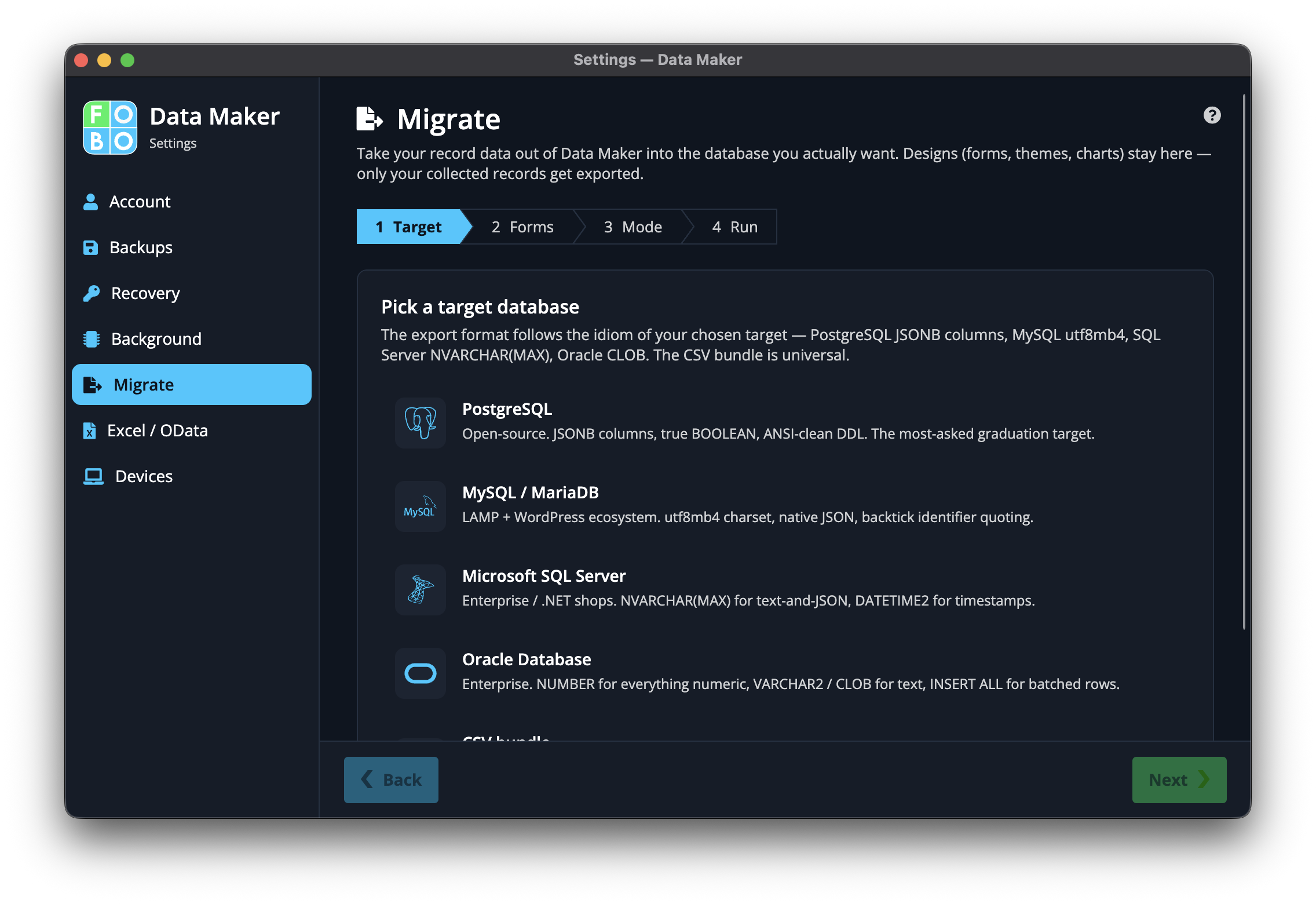
By default the app keeps everything in one tidy box on your computer. But sometimes you'd like to keep your data somewhere different, perhaps a different kind of database that another part of your business already uses. The Moving your data wizard walks you through it step by step, and when it's done, everything looks and works just as it did before.
Make a fresh safety copy before you start. Moving your data is a big change, and a recent backup means you can always step back if anything's not to your liking. Head to Backups and press Back Up Now first.
The four steps
- Choose the destination. Pick the storage format you want to move into. This is the "new house", where your forms and entries will live from now on.
- Pick which forms to move. Choose to take everything, or just select the forms you want to bring along. The rest stay where they are.
- Preview or move for real. Decide whether to do a dry run first, which shows you the plan without changing anything, or to go ahead and move for real. The preview is a chance to check everything looks right before you commit.
- See the results. When it's finished, a summary tells you what was moved and whether it all went smoothly, so you can be confident everything arrived safely in the new place.
Run the preview first the very first time. It's the equivalent of measuring the doorways before moving day: you'll spot any surprises before they cost you anything.
Where to go next
Always begin from Backups so you have something to fall back on.
Didn't find your answer?
We're happy to help. Open a ticket and we'll get back to you.