Arranging the page
Once you've got your questions, the Layout tab is where you decide where each one sits, just like laying out the boxes on a paper form so it reads well and groups things sensibly.
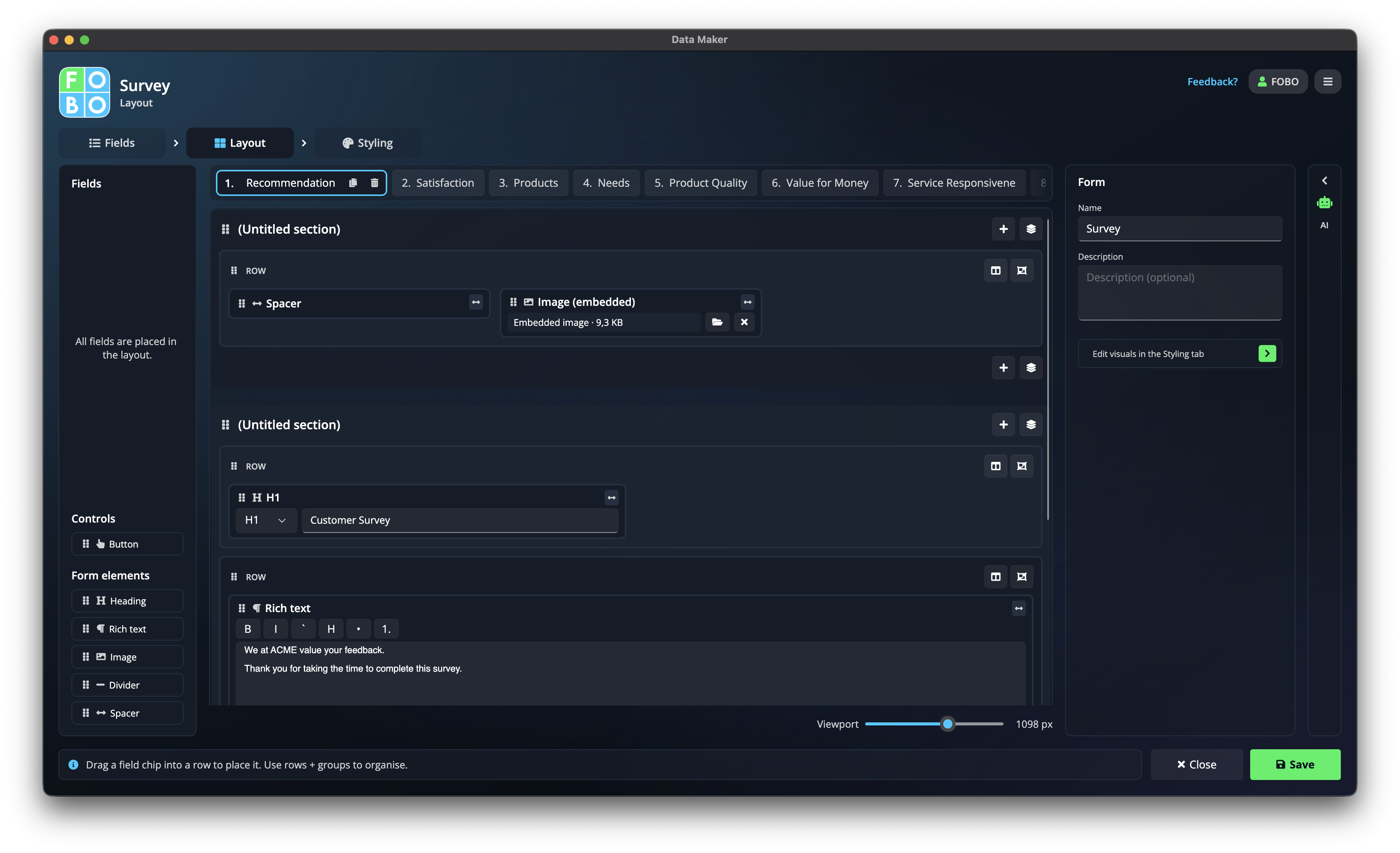
This is the second of the three tabs in the Form Builder. Your questions show up as little "chips" you can pick up and drop into place. The page builds itself around them as you go.
The building blocks
You arrange the page using a few simple containers, nested like a set of boxes inside boxes:
| Block | What it's for |
|---|---|
| Steps | Separate pages of a multi-page form, like turning over to page two. People answer one step, then move to the next. Great for longer forms so they don't feel overwhelming. See Buttons & wizard steps. |
| Sections | A group of questions under a heading, like "Your details" or "Payment". Keeps related questions together. |
| Rows | A horizontal line on the page. Everything in a row sits across, side by side. |
| Columns | Split a row so two questions sit next to each other, for example first name and last name on one line. |
Dragging things into place
- Pick up a chip: click and hold a question's chip and drag it.
- Drop it where you want it: into a section, a row, or a column. The page shows you where it'll land as you hover.
- Put two side by side: drop a second question into the same row to create a second column.
Adding decoration
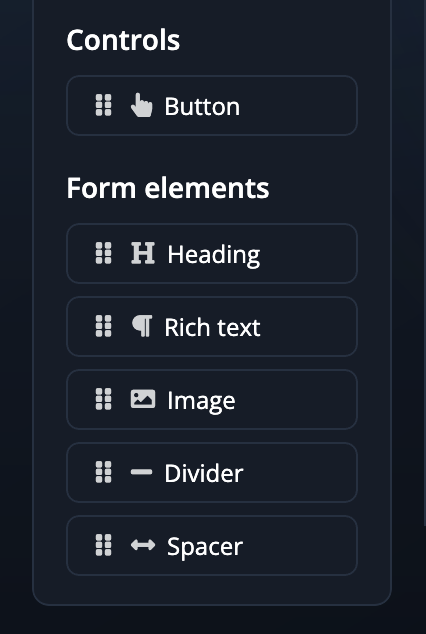
A form isn't only questions. You can drop in a few non-question pieces to make it clearer and more polished:
- Heading: a title for a section, in a few sizes.
- Rich text: an intro, instructions, or a friendly note, with basic formatting.
- Image: your logo or a picture, placed wherever you like.
- Divider: a simple line to separate one part of the form from the next.
- Button: an action button (Submit, Save, Next, and more). See Buttons & wizard steps.
- Spacer: an adjustable vertical gap for breathing room.
Checking how it looks at different sizes
People will fill in your form on all sorts of devices. The Viewport slider lets you preview the page at any width: drag it narrow to see how it looks on a phone, wide to see a desktop. Side-by-side columns gracefully stack into one column when the screen gets narrow.

Two short questions look tidy side by side on a desktop, but cramped on a phone. The width slider lets you check both before you publish, so there are no surprises.
What's next
Happy with where everything sits? Head to the Styling tab to set the colours and look. Need to add or change a question first? Pop back to Adding fields.
Didn't find your answer?
We're happy to help. Open a ticket and we'll get back to you.