Recovery
Bringing your data back from a safety copy, like reaching for the photocopy when the original goes missing.
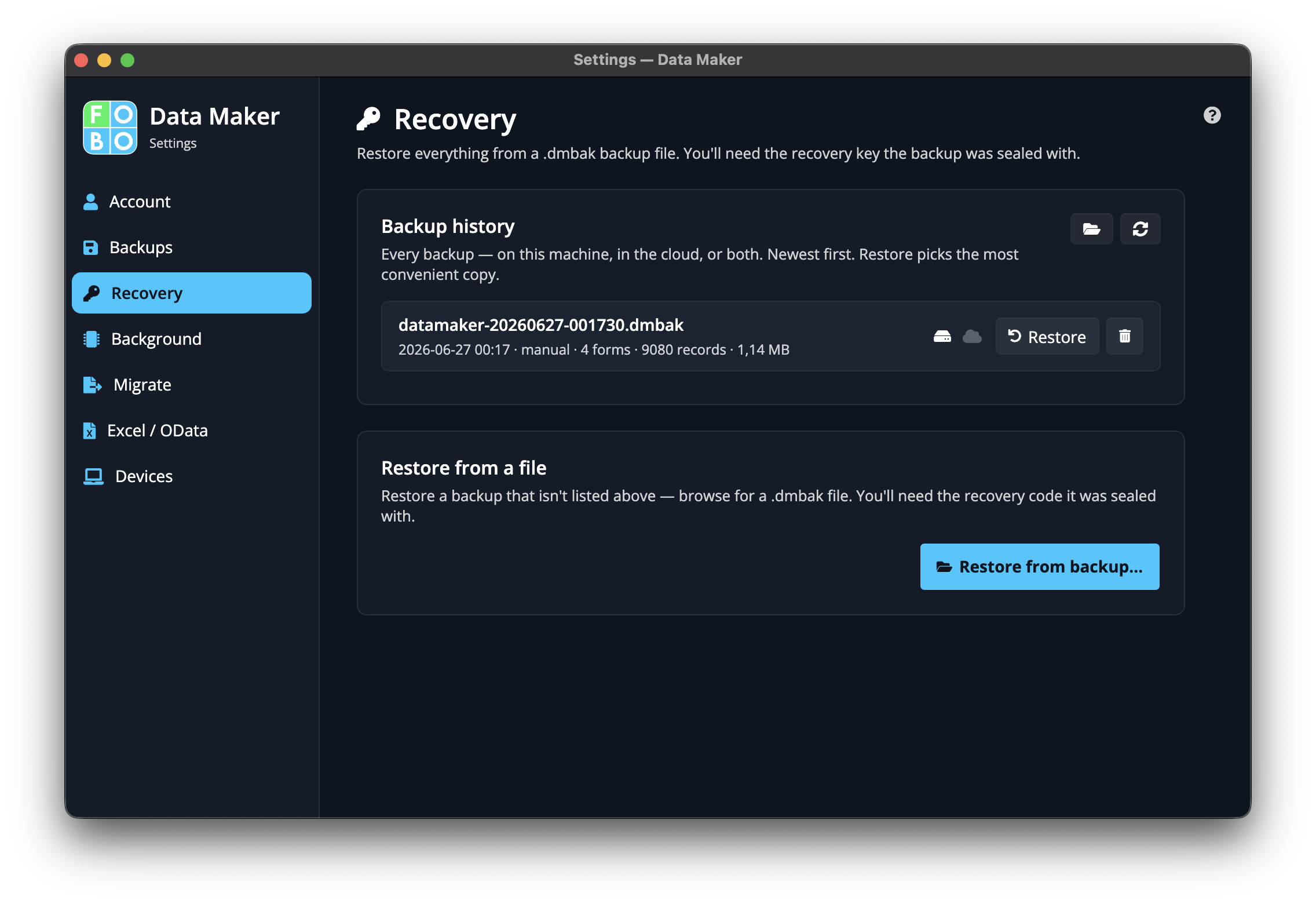
If something goes wrong, the Recovery page is where you put things right. It lists the safety copies you've made and lets you restore any one of them, turning the clock back to how things were when that copy was taken.
Your past backups
Each copy you've made appears in a list, newest at the top, with the date it was taken so you can pick the right moment to go back to. Every copy has two buttons:
| Button | What it does |
|---|---|
| Restore | Brings your forms and entries back to exactly how they were when that copy was made. |
| Delete | Removes that copy for good when you no longer need it. This doesn't touch your current data, only the saved copy. |
Open the backup folder
A handy button opens the folder where your copies live, straight on your computer. Use it when you want to see the files yourself, copy one onto a USB stick, or move one somewhere safe.
Restoring from a copy you've saved elsewhere
Maybe you kept a copy on an external drive or a cloud storage account. You can restore from one of those too. Just point the app at the backup file and it'll do the rest, even if that copy isn't in the usual folder.
Restoring replaces everything you have now with what was in the copy. Anything you've added since that copy was made will be gone. You'll also need your recovery code (the secret phrase from when you first set up the app) to unlock the copy. See the getting-started guide if you're unsure where yours is.
Where to go next
To change how often copies are made, or to make a fresh one before you restore, visit Backups.
Didn't find your answer?
We're happy to help. Open a ticket and we'll get back to you.