The Records list
This is your home base for every answer collected for a form: a table where each row is one filled-in entry, like a spreadsheet that fills itself in as people respond.
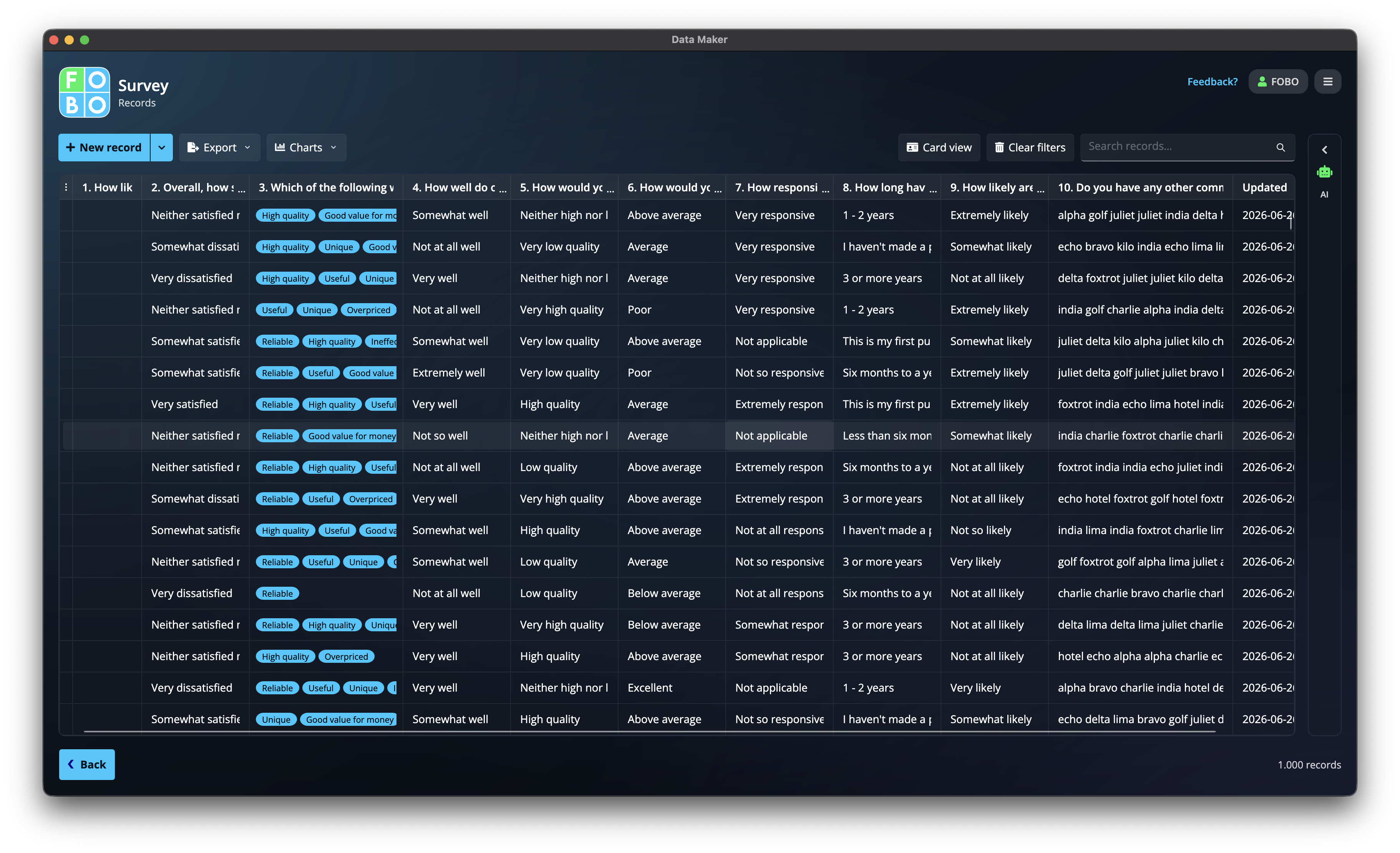
Think of a form as a blank questionnaire, and each record as one completed copy of it. The Records list gathers all of those completed copies in one place. Every row is a single entry, and every column is one of the questions on your form. From here you can add new entries, search through them, tidy them up, turn them into charts, and send them out as files.
Adding a new record
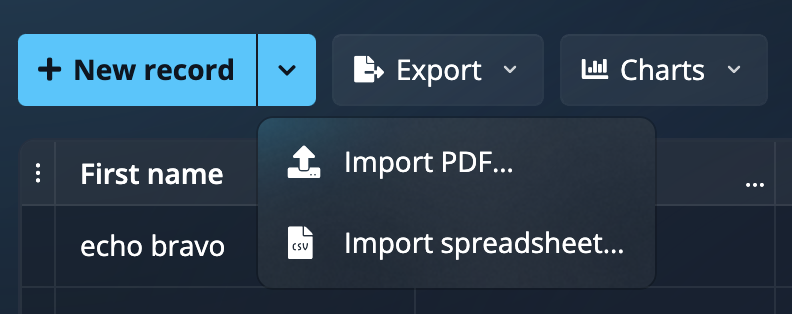
The New Record button at the top is how you add an entry by hand. Click it and a window opens showing your form, ready to fill in. See Adding & editing a record for the details.
You don't have to type everything yourself, though. The same button also lets you bring in lots of entries at once from a spreadsheet on your computer, from Google Sheets, from Excel Online, or even from an existing PDF form. That's covered in Importing records.
Two ways to look at your entries
Near the top you'll find a toggle that switches between two views of the very same data:
- List view: the table you're reading about now. Best for seeing many entries at once and comparing rows side by side.
- Card view: shows one entry at a time on a full card, like flipping through index cards. Best for reading or editing a single entry calmly. See Card view.
Finding the entry you want
When the list grows long, two tools help you narrow it down:
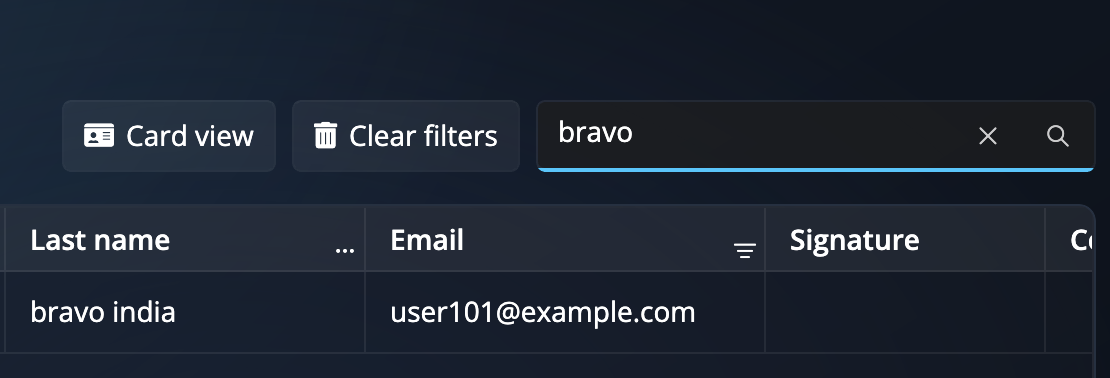
- The search box: start typing and the list shrinks to only the rows that contain what you typed. Handy for finding "that one entry from Maria" in a hurry.
- The filters: set conditions like "only entries from this month" or "only the ones marked complete" to hide everything else until you clear them.
Editing right in the table
You don't always need to open an entry to change one small thing. Click a cell in the table and you can edit that value in place, then click away to keep it, much like changing a single box in a spreadsheet. For bigger changes, open the full entry instead.
Some answers are worked out automatically from your other answers, so you won't be able to type into those cells. They fill themselves in and update as the other values change.
The right-click menu on a row
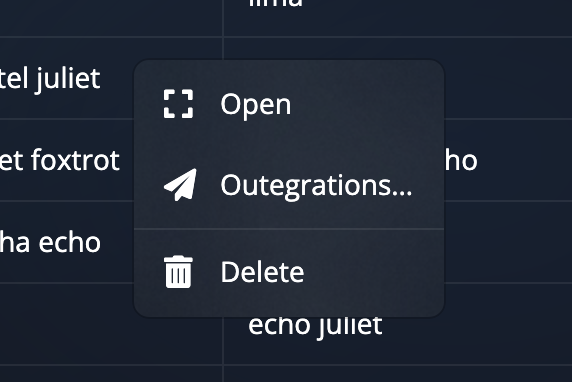
Right-click any row to bring up a short menu of actions for that single entry:
| Action | What it does |
|---|---|
| Open | Opens the full entry window so you can read or edit everything. |
| Duplicate | Makes a copy of the entry as a new row, a quick start when a new entry is almost the same as an old one. |
| Send onward | Pushes that entry to another place you've set up, such as an email or another app. See Sending records onward. |
| Delete | Removes the entry for good, so use it with care. |
Getting your entries out
Two menus at the top help you do more with what you've collected:
Export
Save your entries as an Excel, CSV, or PDF file to share or keep. See Exporting records.
Charts
Turn your entries into simple visuals like bar charts. See Charts & dashboards.
AI assistant
Open the assistant drawer on the side to ask questions about your entries in plain language.
The AI assistant drawer slides out from the side of the screen. You can ask it things in everyday words and it works with the entries in your list.
Didn't find your answer?
We're happy to help. Open a ticket and we'll get back to you.