Adding fields
A field is just one question on your form: a name box, a date, a yes/no, a rating. The Fields tab is where you build up your list of questions, like writing the lines on a paper form one at a time.
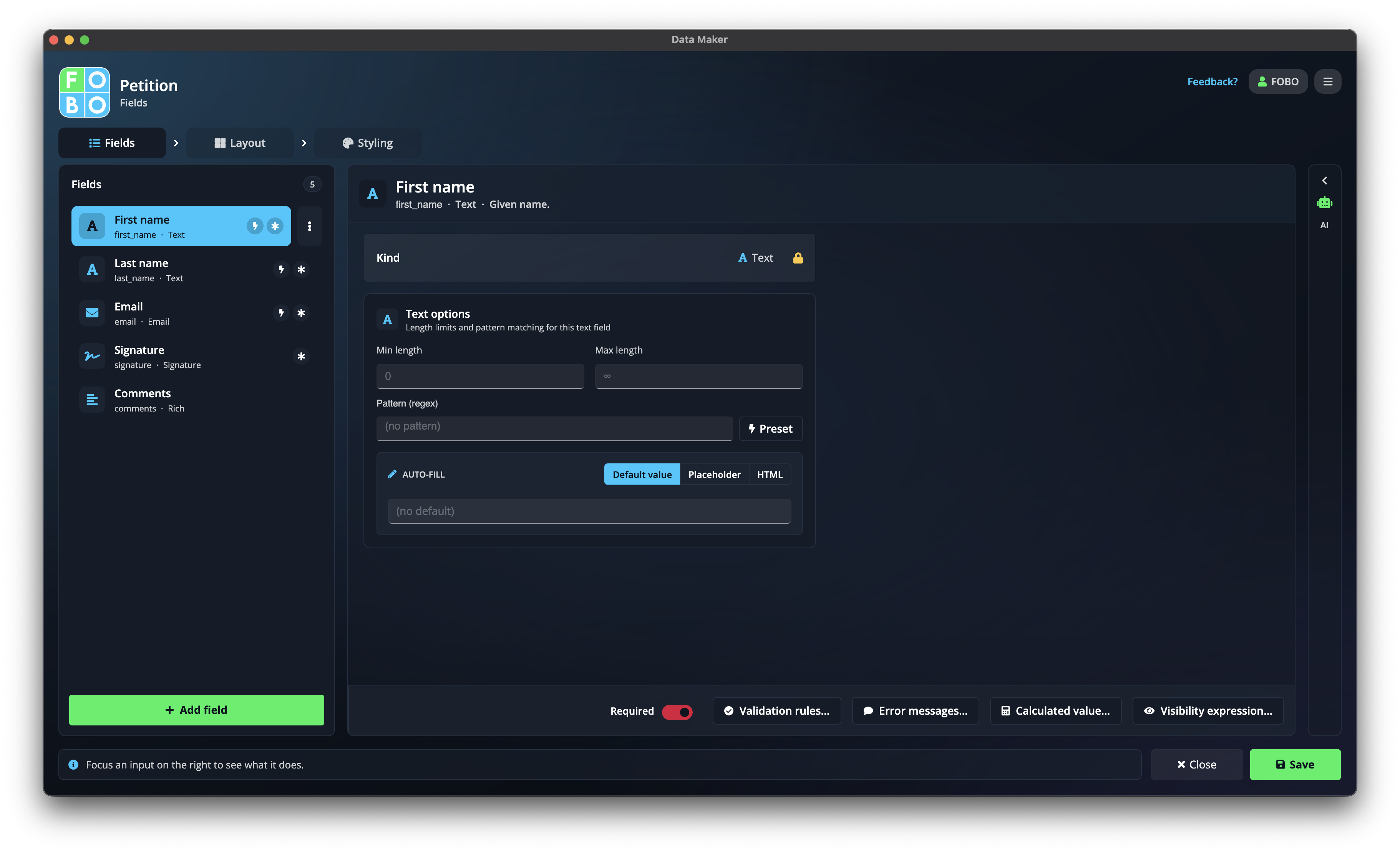
This is the first of the three tabs in the Form Builder. Down the middle you'll see the list of questions you've added so far. On the left is the button to add more, and when you click a question its settings open up so you can fine-tune it.
Adding a new question
- Click Add Field: the button with a plus. A picker window opens where you choose what kind of question you want (a text box, a date, a choice from a list, and so on). See The Add Field window.
- Pick a type and give it a label: the label is the wording people will read, like "Your full name" or "Preferred date".
- It lands in your list, ready to be selected and adjusted, or dragged into place later on the Layout tab.
The "···" menu on each field
Every question in the list has a small ··· (more) button. Click it for quick housekeeping actions:
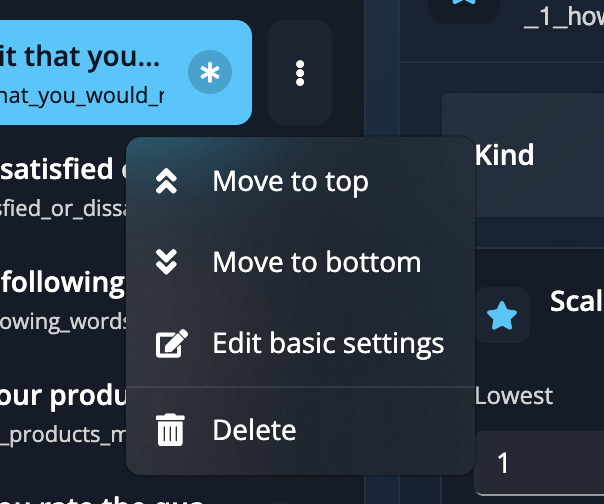
| Action | What it does |
|---|---|
| Move to top | Jump the question to the start of the list. |
| Move to bottom | Jump the question to the end of the list. |
| Edit basic settings | Open the field's label, required toggle and help hint. |
| Delete | Remove the question from the form. |
A field's settings
Click any question to open its settings. What you can change depends on the kind of question, but most share these basics:
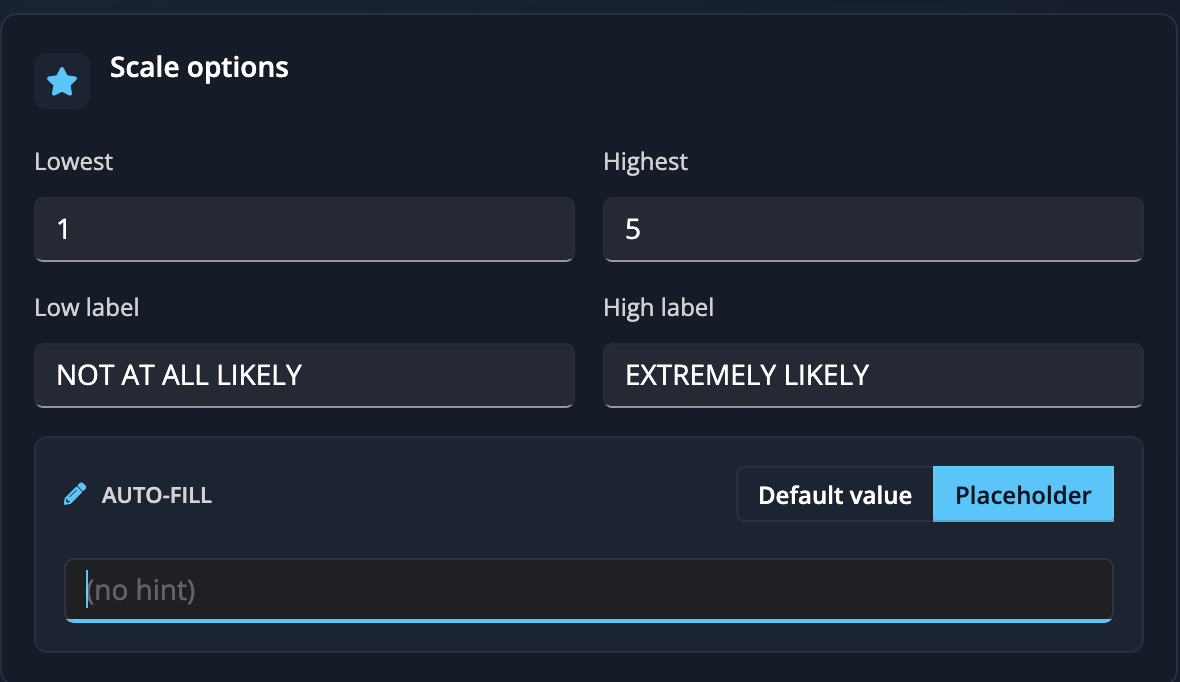
- Label: the wording people see above the box.
- Required: a switch that makes the question one people must answer before they can finish.
- Help hint: a short line shown underneath, like "Use the format day/month/year", to guide whoever's filling it in.
Advanced options
Tucked below the basics are the clever bits:
- Checks: rules that make sure an answer makes sense, like a minimum number or a valid email. See Checks & error messages.
- Show/hide and calculate rules: make a question appear only when it's relevant, or work out a value automatically. See Calculations & smart rules.
There's a help bar along the bottom of the tab that updates as you click around. It explains whatever you've got selected, so you're never left guessing what a setting does.
The assistant rail
Alongside the Fields tab is the AI assistant. Rather than adding questions one by one, you can describe what you need (for example, "add a phone number and an email, both required") and it will build them for you. See The AI assistant.
Get your questions roughly right first, then move to the Layout tab to arrange them. It's much easier to lay out questions once they exist.
Didn't find your answer?
We're happy to help. Open a ticket and we'll get back to you.