Publishing a form
Publishing is how you get your form out of Data Maker and into the world, so other people can fill it in. Think of it like printing flyers or putting a sign-up sheet on the wall, except you choose exactly how and where it goes.
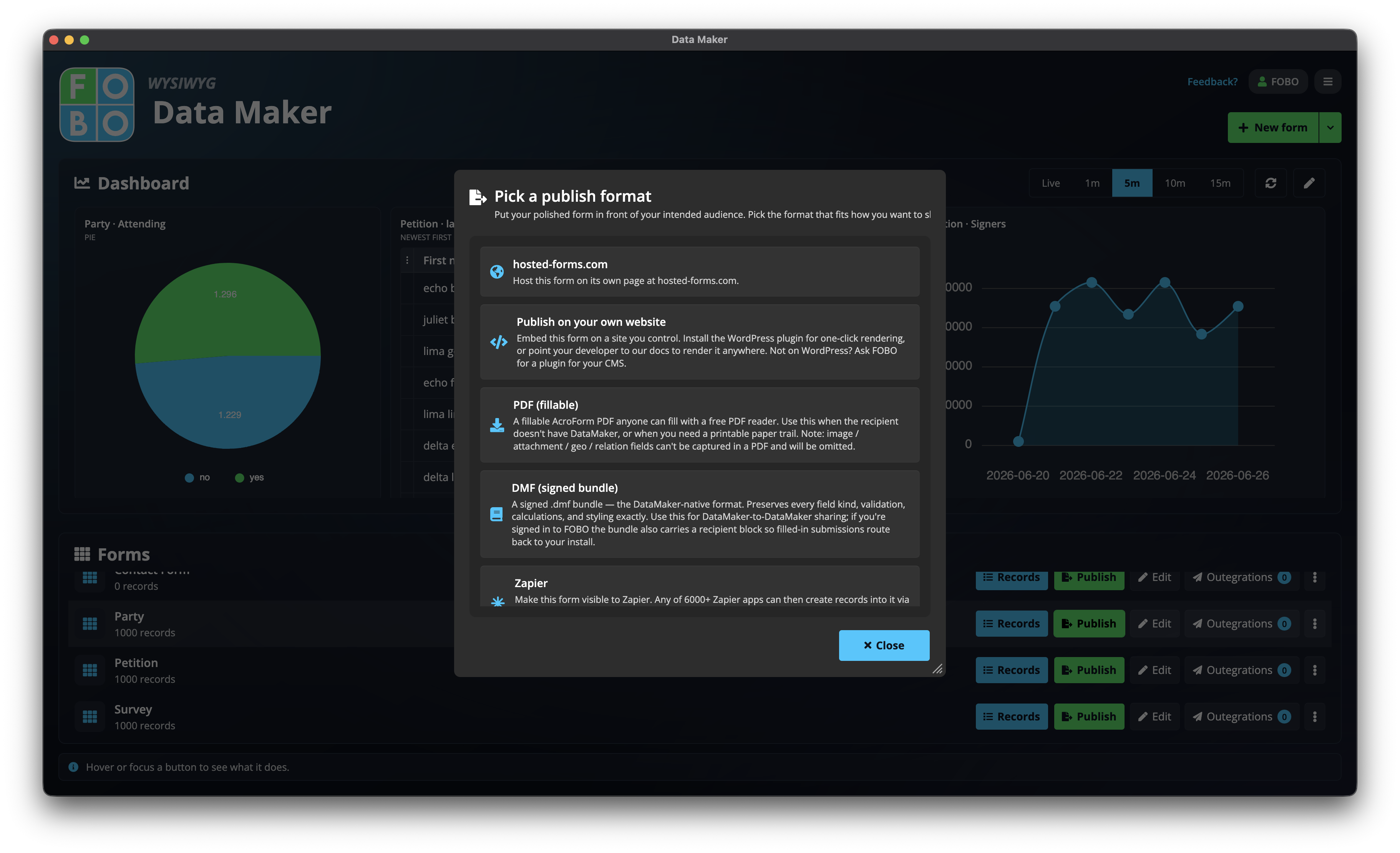
Pick a format first
When you publish, the first thing you do is choose how you want to share your form. There are a few different ways, and you can use more than one for the same form. Here's what each one is for.
| Format | What it does |
|---|---|
| Hosted web page | Data Maker puts your form online at its own web address, with nothing for you to set up. You pick a short name, and your form lives at that address straight away, ready to share by link, email, or anywhere you like. |
| Your own website | Get a small snippet of text to drop into a website you already run, so the form appears right there on your own pages. |
| A PDF copy of your form. You can make it fillable on a computer, or print it out and fill it in by hand. | |
| Form file (.dmf) | A single file containing your exact form. Send it to anyone else who uses Data Maker and they get the form precisely as you built it. See importing a form for the other side of this. |
| Zapier | Connect your form to thousands of other apps through Zapier, so your entries can flow into the tools you already use. |
Putting your form online (hosted web page)
The hosted web page is the quickest way to start collecting answers. Data Maker hosts the page for you, so there's no website or technical setup needed. There's a simple step-by-step wizard to walk you through it.
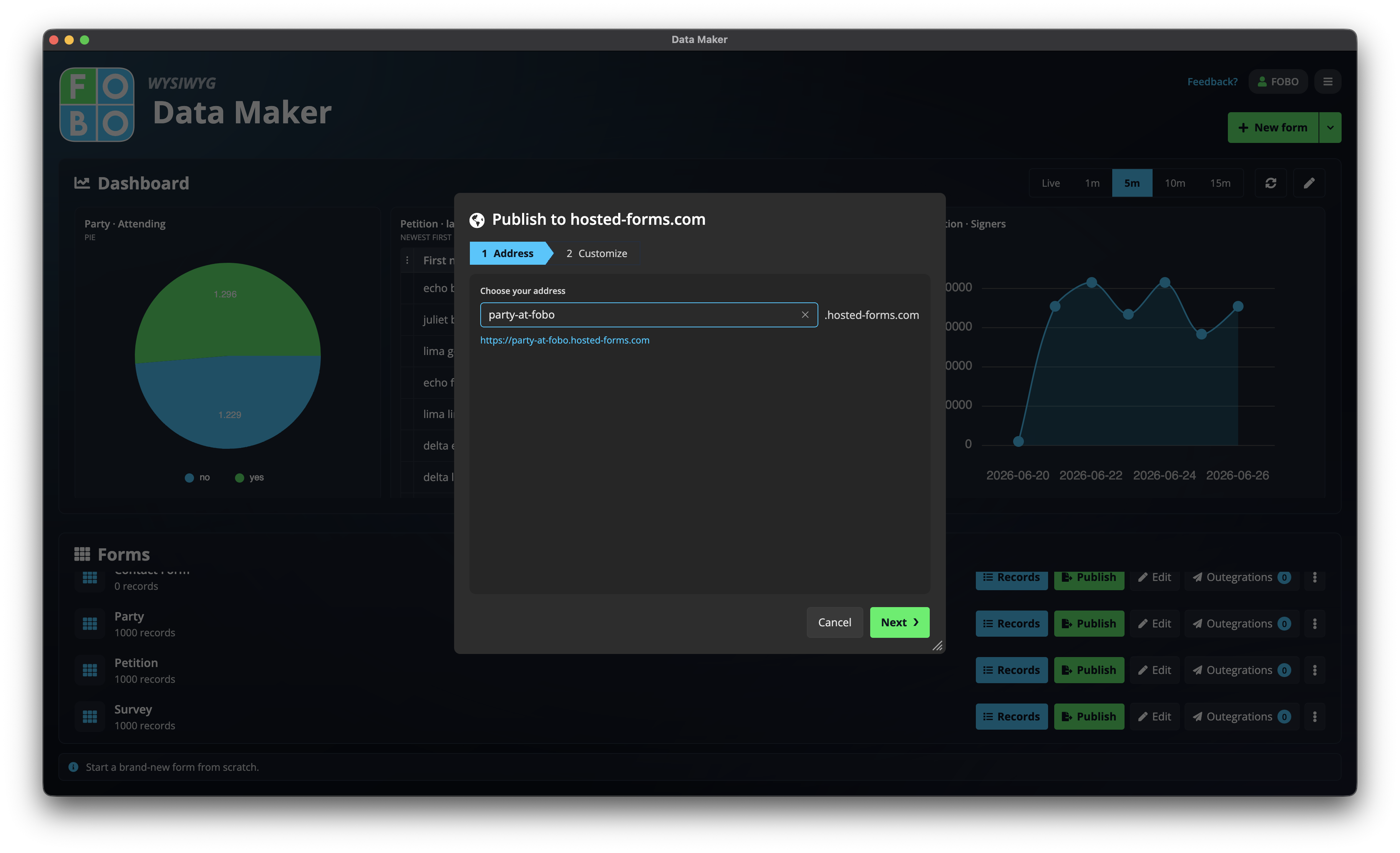
- Choose a short name. This becomes part of your form's web address, a bit like choosing the name for a shop. Pick something short and memorable.
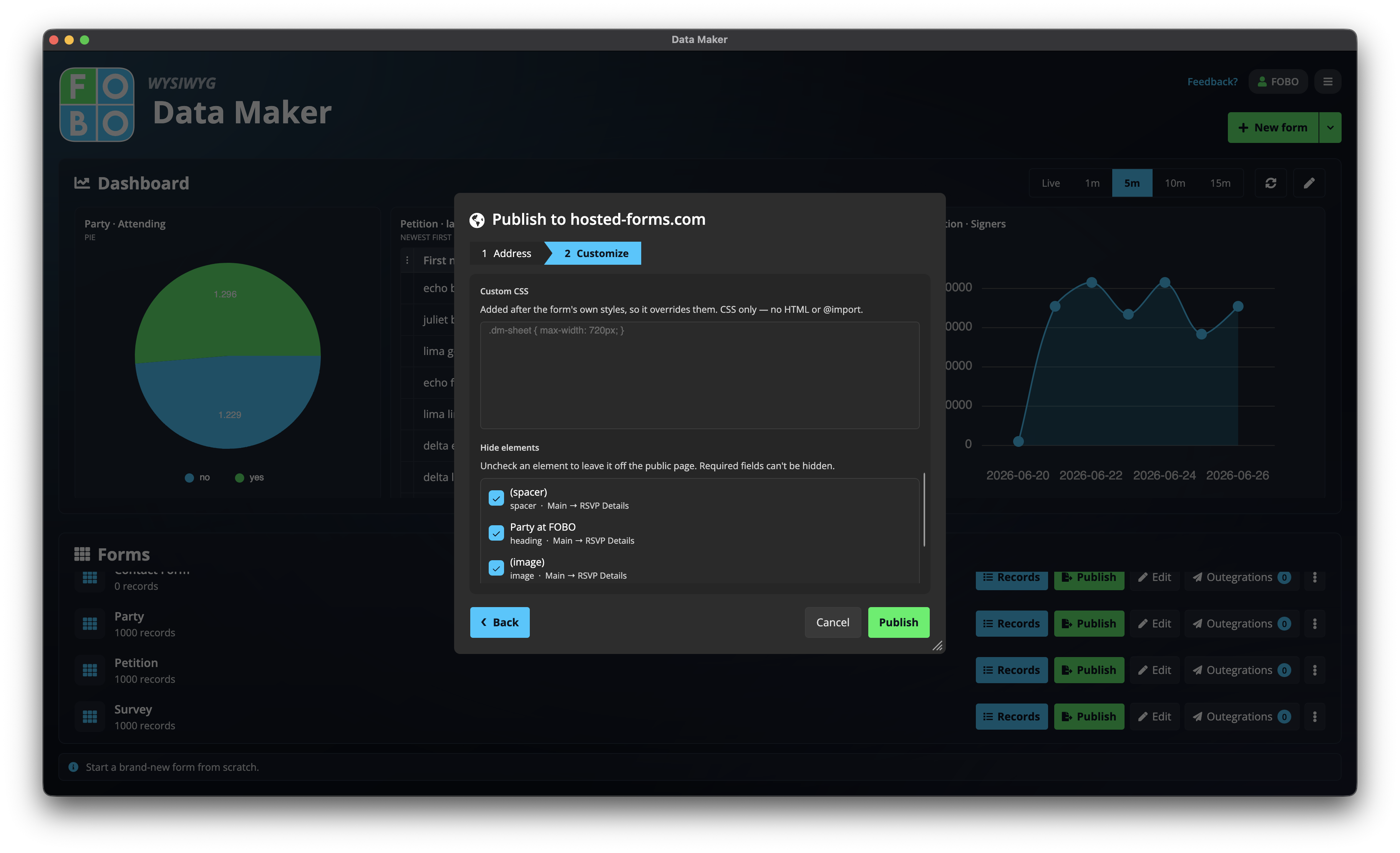
- Pick the look. Choose a theme, add your own logo, and set a heading so the page feels like yours. See styling your form for more on the look and feel.
- Add your messages. Write a short intro at the top to welcome people and explain what the form is for, and a thank-you message that appears once someone has finished.
- Publish. Data Maker puts the page live and gives you the web address. Copy it and share it however you like.
If you want more control, switch the wizard to advanced mode. There you can hide certain parts of the page or add your own styling for a more custom look.
What happens to the answers?
Every time someone fills in your published form, the answer comes back to you as a new entry. You can view all your entries on the records screen.
If you'd like each new entry to be passed on automatically (for example, emailed to a colleague or sent into another app), you can set that up with sending records onward.
You can change your published form later. Just edit the form and publish again, and the same web address keeps working with your updates.
Didn't find your answer?
We're happy to help. Open a ticket and we'll get back to you.