Card view
An alternative to the table that shows one entry at a time on a full card, like flipping through index cards in a box, or paging through contacts on your phone.
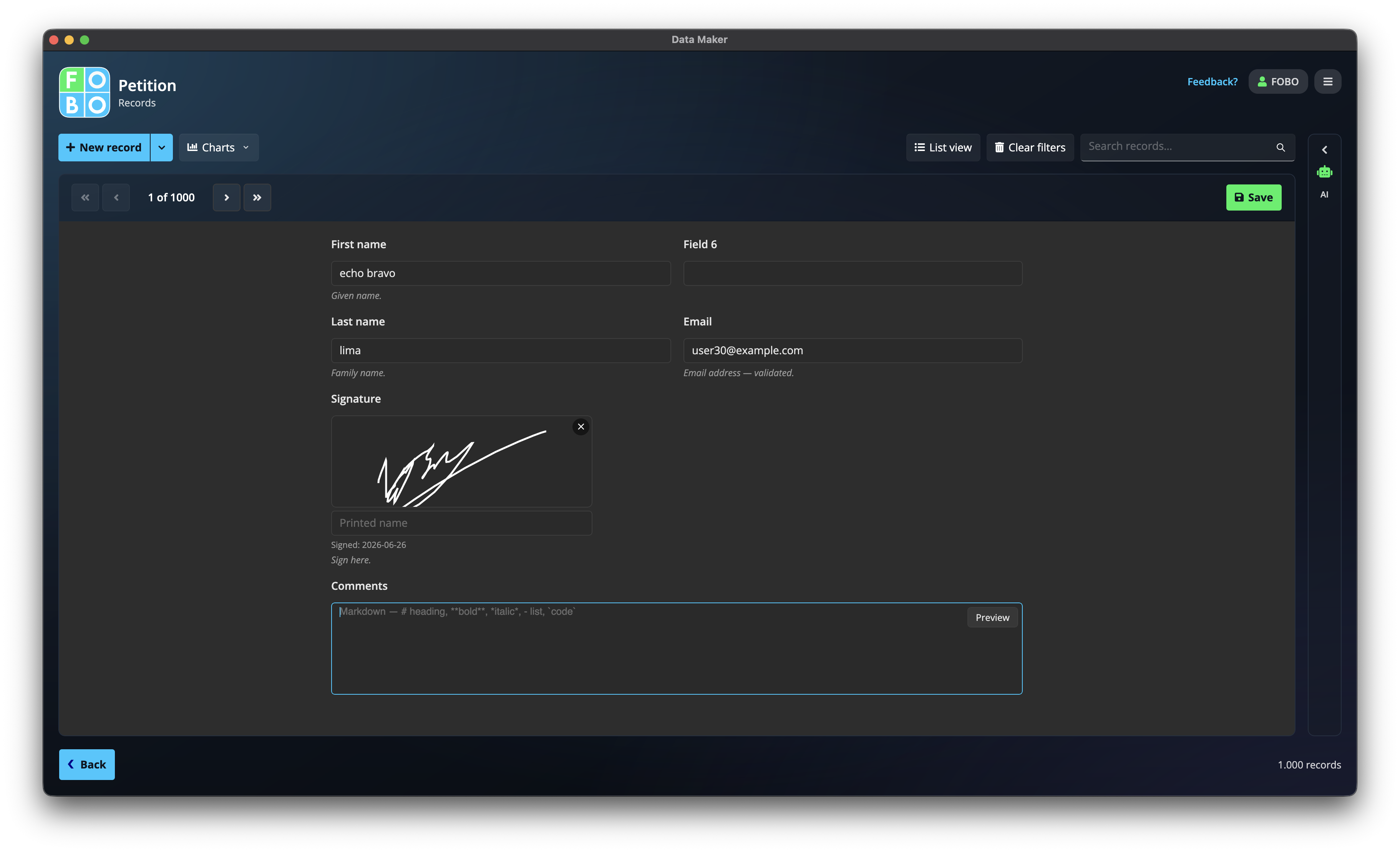
The Records list is great for seeing lots of entries at once. But sometimes you just want to focus on one entry, reading it properly or making a few edits without the clutter of every other row. That's what card view is for. Flip the view toggle at the top of the Records screen and your entries turn into a stack of cards, one shown at a time.
Paging through your entries
A row of buttons lets you move through the stack, the way you'd thumb through cards in a box:
| Button | What it does |
|---|---|
| First | Jumps straight to the very first entry. |
| Previous | Steps back one entry. |
| Next | Steps forward one entry. |
| Last | Jumps straight to the most recent entry. |
| Save | Keeps any changes you made to the card you're looking at. |
As you move from one card to the next, the page turns with a little page-flip animation, so it really does feel like leafing through a book or a deck of cards.
Editing on a card
You can change answers right on the card, just as you would in the full entry window. When you're happy with your changes, press Save before paging away so they're kept.
Make a habit of saving before you flip to another card, so a change you meant to keep doesn't slip away.
When card view is the nicer choice
Reach for card view when you're working with a single entry rather than the whole pile, for example:
- Reading one person's answers in full, calmly, without the rest of the table in your way.
- Reviewing entries one by one and tidying each as you go.
- Showing a single entry to someone over your shoulder.
For comparing many entries at a glance, or scanning a column of values, switch back to the table in the Records list. Card view and list view show the very same entries, so pick whichever suits the task.
Didn't find your answer?
We're happy to help. Open a ticket and we'll get back to you.