Importing records
Bring in lots of entries at once instead of typing them one by one, like emptying a whole tray of forms into your file box in a single go.
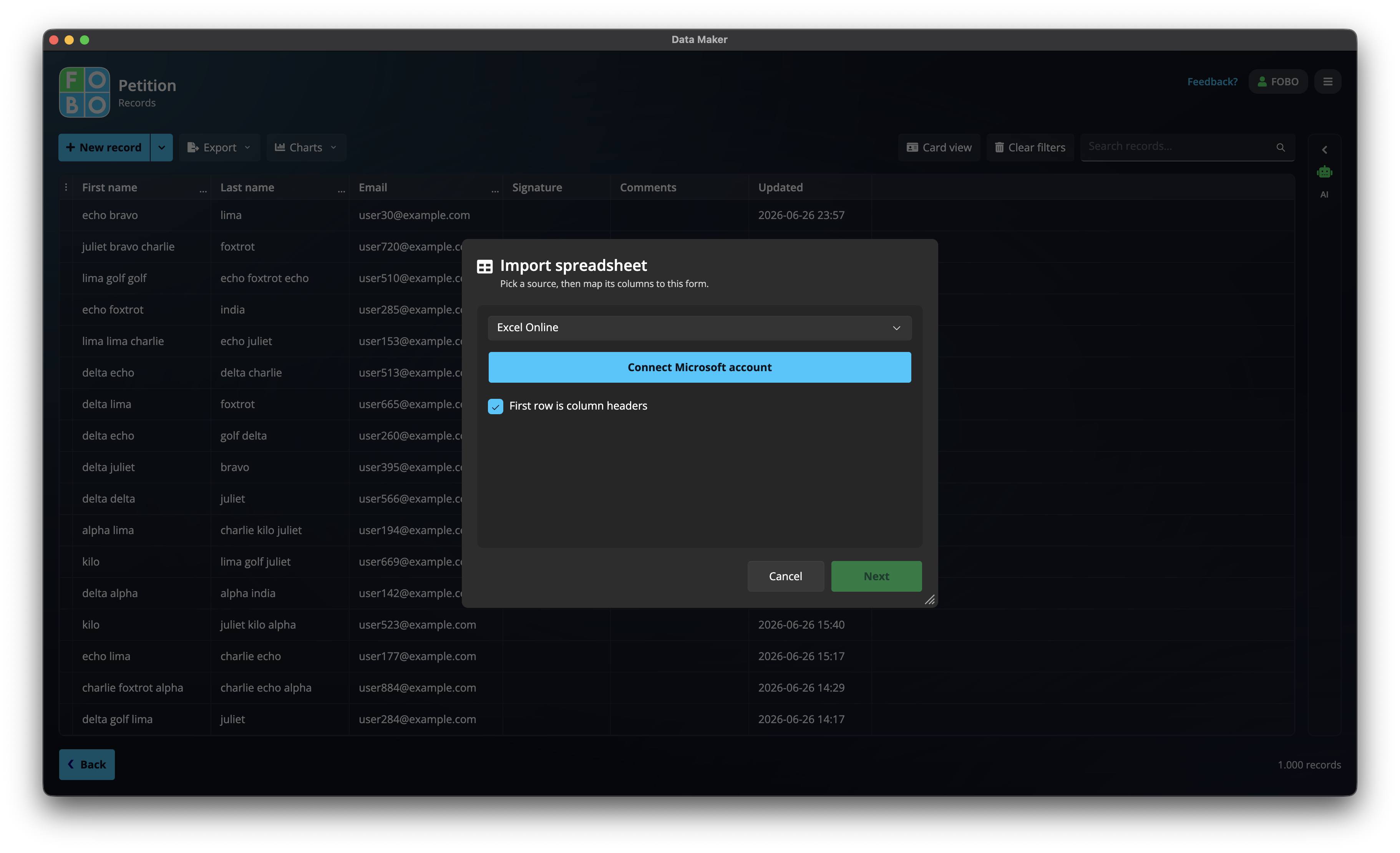
If you already have your answers gathered somewhere else, there's no need to re-key them by hand. Importing lets you pour them straight into your form as new entries. You'll find it under the New Record button on the Records list.
Two places to import from
A spreadsheet
A file on your computer, or one in Google Sheets or Excel Online. Each row in the spreadsheet becomes one entry.
A PDF form
An existing fillable PDF. The boxes that were filled in become the answers for one entry.
How importing works
Whichever source you choose, the steps are the same:
- Choose the source: pick whether you're bringing in a spreadsheet or a PDF, and point to the file (or sign in to Google Sheets or Excel Online for a file kept there).
- Match the columns: in the mapping step you line up each spreadsheet column (or each PDF box) with the matching question on your form. For example, you'd point the "Email" column at your form's email question. This is how the app knows where each piece of information belongs.
- Import: once the matches look right, start the import. The app reads through everything and adds an entry for each row, then drops you back in the Records list with your new entries in place.
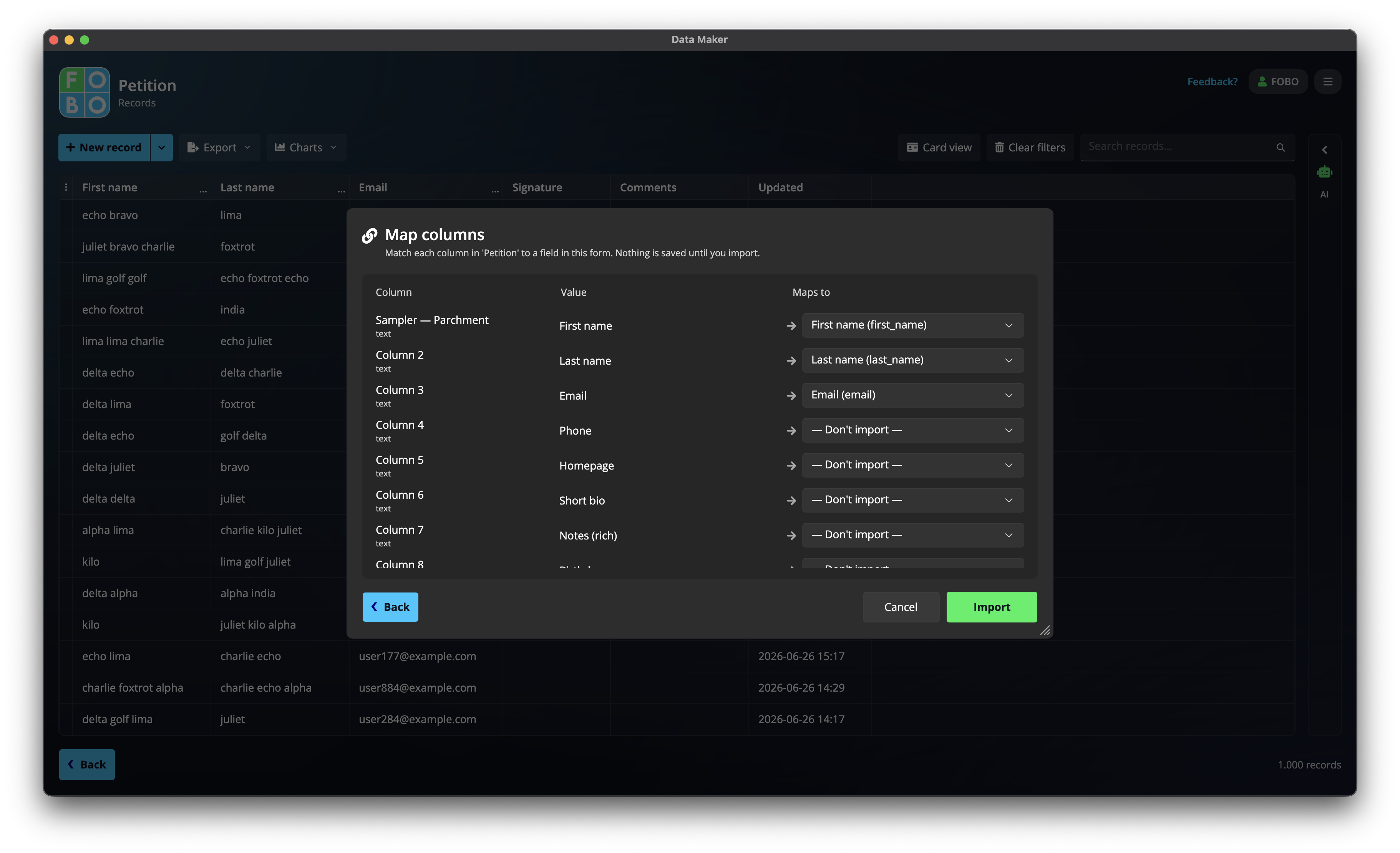
Always look over the column matches before you press import. If a column is pointed at the wrong question, every imported entry will have that detail in the wrong place, and undoing it afterwards is far more work than checking first.
Very large spreadsheets are no problem: you can import many thousands of rows, even hundreds of thousands, in one go. A progress window keeps you posted while it works through them.
Once your entries are in, you can search, edit, and tidy them just like any others back in the Records list.
Didn't find your answer?
We're happy to help. Open a ticket and we'll get back to you.