Look & feel
The Styling tab is where you dress your form up (the colours, fonts, borders, and background) so it matches your brand. Think of it like choosing the paper, ink, and letterhead for a printed form.
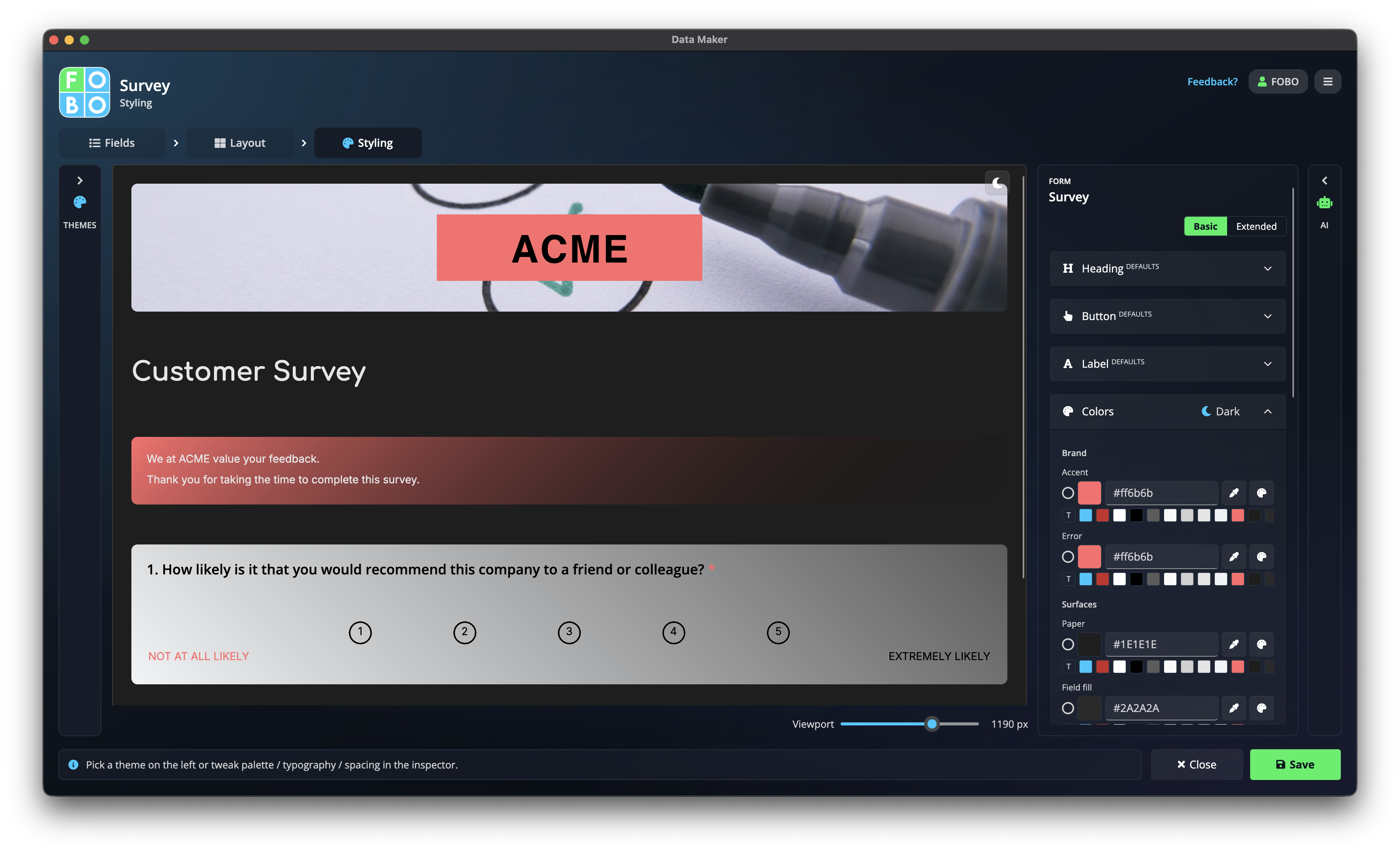
This is the last of the three tabs in the Form Builder. You'll see a live preview of your form in the middle, with controls around it to change how it looks. Nothing here changes your questions or where they sit, only their appearance.
What you can change
- Colours: the main accent colour, text colour, and backgrounds.
- Fonts: the typeface and size of headings and text.
- Borders: how the boxes and edges look, from crisp lines to soft rounded corners.
- Background: a plain colour or a softer shade behind the form.
Ready-made themes
A panel on the side holds a collection of ready-made looks, so you don't have to start from scratch. From here you can:
| Action | What it does |
|---|---|
| Browse & apply | Click any theme to instantly dress your form in that look. Try a few, and the preview updates straight away. |
| Save current look | Keep the look you've created as a new theme of your own, so you can reuse it on other forms. |
| Import | Bring in a theme someone shared with you. |
| Reset | Put everything back to the plain starting look if you want a clean slate. |
When you save your current look, a small dialog pops up to ask for a name. Give it something memorable like "Company blue" so it's easy to find later.
Light and dark preview
A toggle lets you preview your form in light or dark mode. People who use a dark screen will see the dark version, so it's worth flicking the toggle to make sure your colours look good both ways.
Fine-tuning a single part
For precise control, a details panel (sometimes called the inspector) lets you adjust just the part you've selected. Click a heading, a box, or a button in the preview, and the panel shows the settings for that one piece. This is how you get the exact shade or spacing you're after without changing everything else.
Start with a ready-made theme that's close to what you want, then use the details panel to nudge a colour or two. It's far quicker than building a look from nothing.
Going back
Need to change a question or rearrange the page? Hop back to Adding fields or Arranging the page, and your styling stays put.
Didn't find your answer?
We're happy to help. Open a ticket and we'll get back to you.