Account
Your personal details, your sign-in, and the credits that power the AI helper, like the front page of your membership card, all in one place.
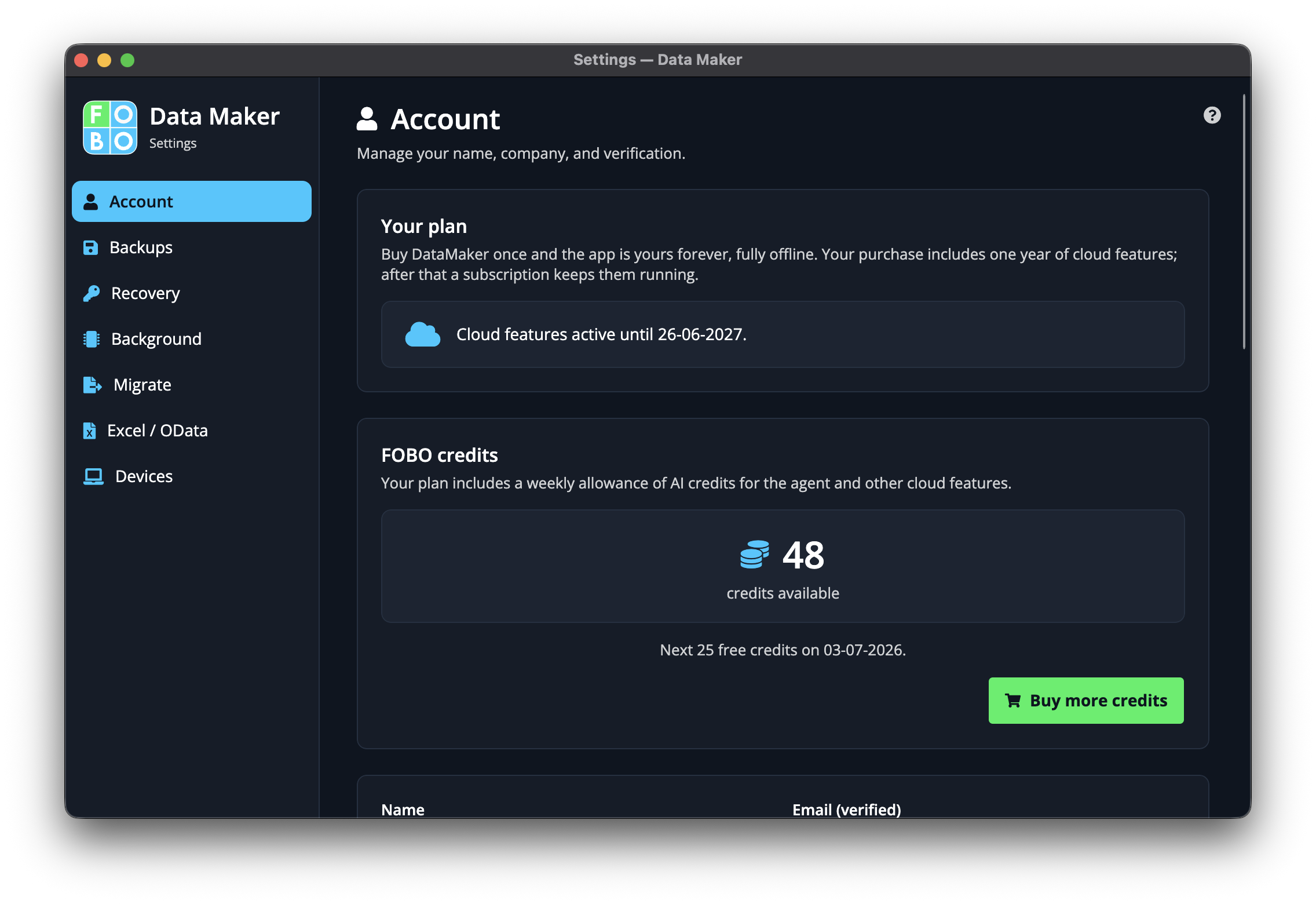
The Account page is where you keep your own details and check on the bits and pieces that belong to you. Nothing here changes your forms or your entries. It's about you and how the app knows who you are.
Your name and company
Near the top you'll see your name and, if you have one, the company you work for. These appear on things you send out, so it's worth getting them right. Edit them whenever you like and save with the Save button.
How you sign in
This shows the email address you use to sign in, your identity within the app. Think of it as the name on your library card: it's how the app recognises you each time you come back.
Your credit balance
Credits are like tokens at a fairground: you spend them when you use the AI assistant to build or tidy up a form for you. Your current balance is shown here, and a Buy button lets you top up when you're running low.
You only spend credits when you actually ask the AI helper to do something. Browsing and building forms by hand costs nothing.
Your data store
Every account has its own private data store: the box where all your forms and entries live. Its name is shown here so you can tell at a glance which store you're working in, which is handy if you have more than one.
Verifying your identity
From time to time you may want to confirm that you really are who the app thinks you are, a quick double-check, a bit like showing your passport at a desk. The verify option here walks you through that.
Lost your recovery code?
Your recovery code is the secret phrase that unlocks your data store, so keep it as safely as a spare house key. If you can't find yours, the steps you took when you first set up the app in the getting-started guide will help, and you can read more about getting your data back on the Recovery page.
Without your recovery code, nobody (not even us) can open your data store. There's no master key. Store the code somewhere you'll find it again.
Diagnostics
At the bottom you'll find a diagnostics area. It's a tucked-away corner for troubleshooting, a place that shows behind-the-scenes details if something isn't working and you need to figure out why. You can safely ignore it day to day.
Where to go next
To see the computers you've set up, visit Your devices. To set up safety copies of your data, head to Backups.
Didn't find your answer?
We're happy to help. Open a ticket and we'll get back to you.