Exporting records
Get your entries out as a file you can share, print, or keep, like making photocopies of everything in your file box to hand over or tuck away.
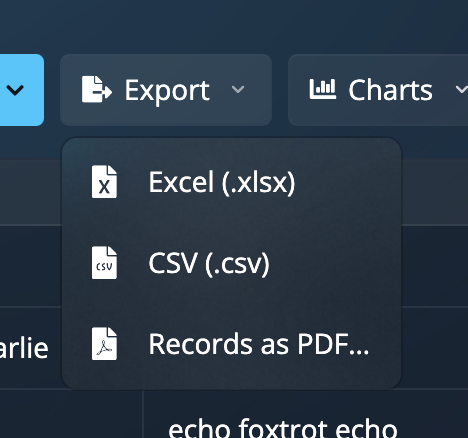
When you want to send your collected answers to someone else, open them in another program, or simply keep a copy safe, use the Export menu at the top of the Records list. It saves your entries as a file on your computer.
Three formats to choose from
| Format | When to use it |
|---|---|
| Excel | A ready-to-use spreadsheet that opens in Excel and most other spreadsheet programs, with each entry on its own row. Best when you want to sort, total, or play with the numbers afterwards. |
| CSV | A plain, no-frills spreadsheet file that just about any program can read. Best when you're handing your entries to another piece of software or someone who'll load them elsewhere. |
| A neat, printable copy that looks the same everywhere. Best for sharing a tidy record, attaching to an email, or printing for a file. |
Not sure which to pick? Choose Excel or CSV if the person receiving it will work with the data, and PDF if they just need to read or print it.
While it works
After you choose a format, a small progress window appears and shows how the export is coming along. For a handful of entries this is over in a blink; for a large pile it gives the app a moment to gather everything. When it finishes, your file is ready to open or share.
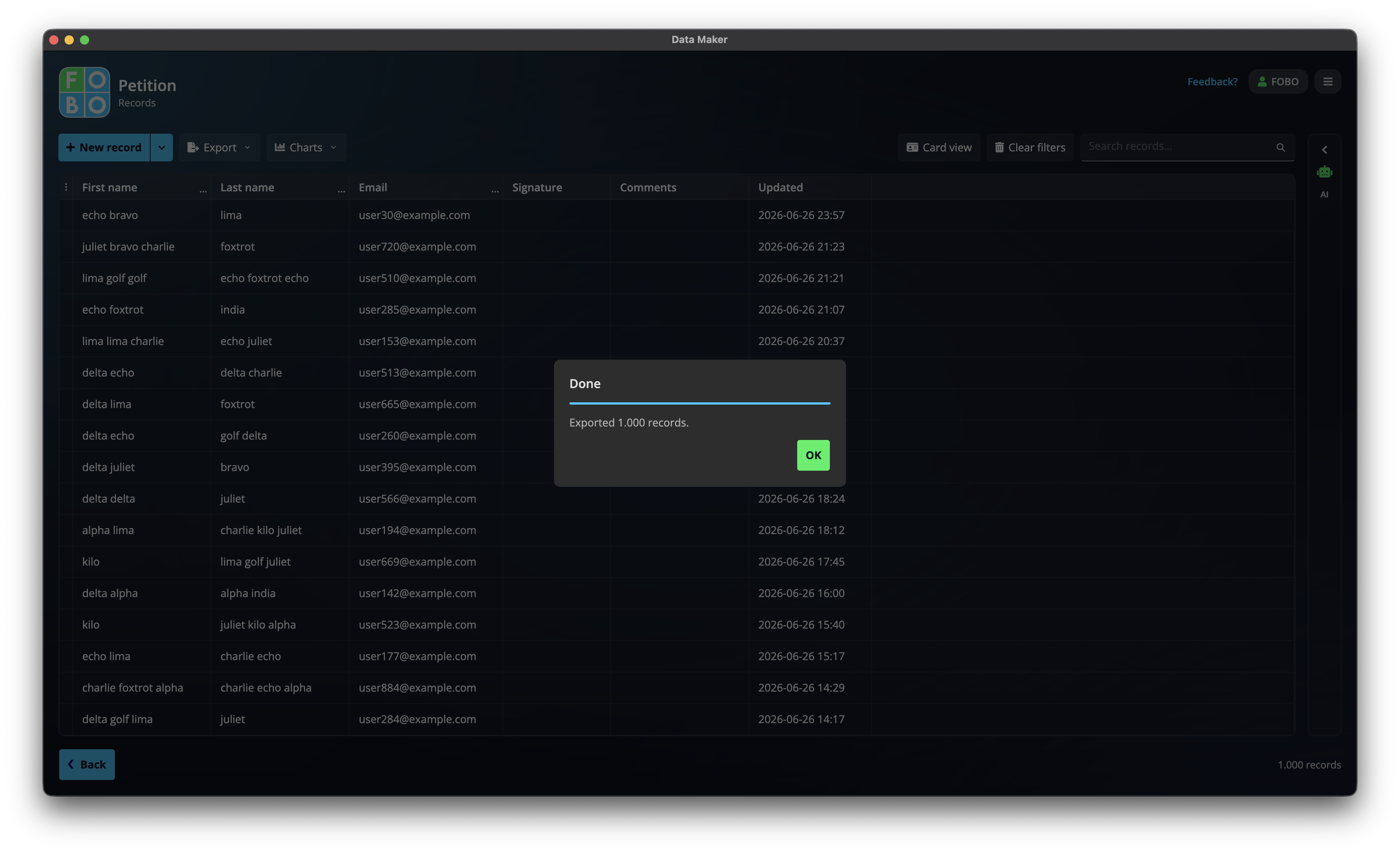
Exporting only ever makes a copy; your entries stay exactly as they are in the app. You can export as often as you like.
Where to go next
If you'd rather turn your entries into visuals than a file, look at Charts & dashboards. To get back to your entries, return to the Records list.
Didn't find your answer?
We're happy to help. Open a ticket and we'll get back to you.