Sending records onward
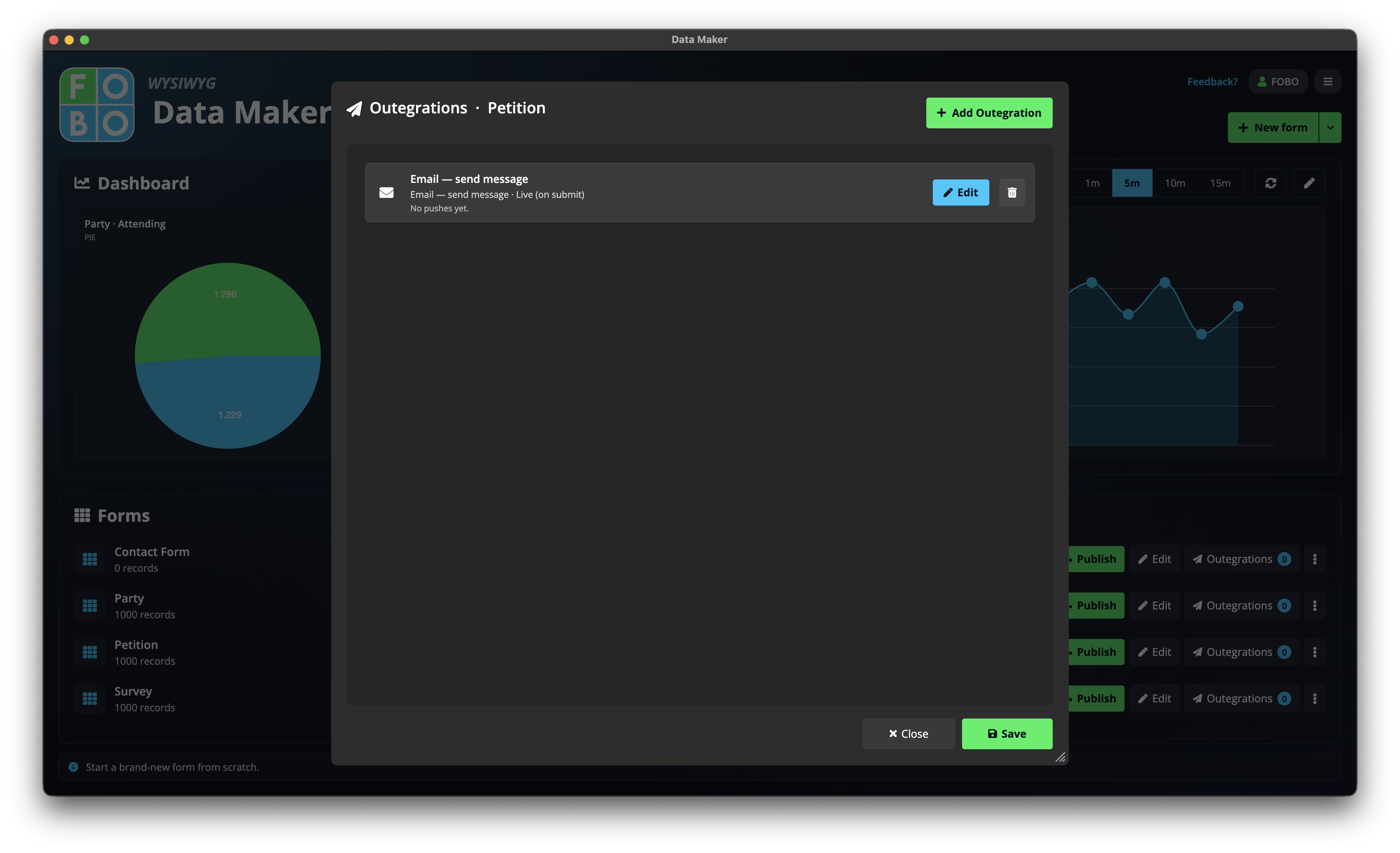
"Outegrations" is just a fancy word for automatically passing each new entry along to another tool, so you never have to copy and paste. It's like setting up a conveyor belt: an answer comes in, and it's whisked off to exactly where you need it.
What this is for
Imagine someone fills in your form. Instead of you opening Data Maker, checking for new entries, and forwarding them by hand, Data Maker can do it for you the moment the entry arrives. For example:
- Email a colleague every time someone submits the form.
- Send the entry straight into another app you use, automatically.
This page is about sending answers out of Data Maker. If you want to bring information in (like loading a spreadsheet of existing records), see importing records instead.
Your list of deliveries
Everything you set up appears in one tidy list. From there you can:
| Action | What it does |
|---|---|
| Add | Create a new delivery using the setup wizard below. |
| Edit | Change the details of a delivery you've already set up. |
| Delete | Remove a delivery you no longer need. |
| Re-send | Send a single entry again by hand, handy if something went wrong the first time. |
Setting up a delivery
When you add a new delivery, a friendly six-step wizard walks you through it. Take it one step at a time.
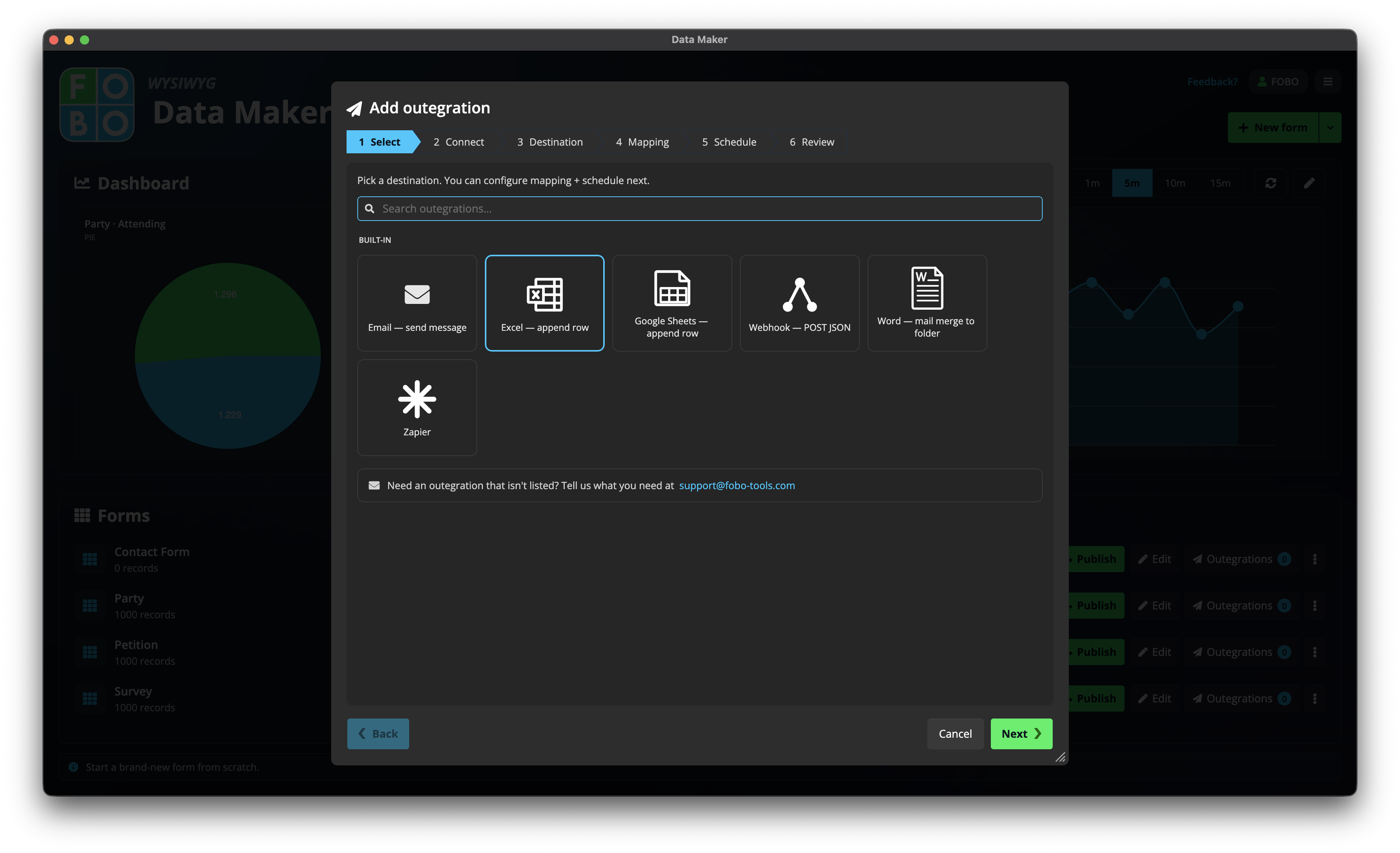
- Choose what kind. Pick how you want entries delivered: by email, or as an automatic message to another app.
- Connect it. Set up the secure connection to wherever the entries are going, so Data Maker is allowed to send on your behalf.
- Choose where it goes. Tell Data Maker the exact destination, such as the email address to send to.
- Match your questions. Line up the questions on your form with the fields the other tool expects, so each answer lands in the right place.
- Choose when it runs. Decide whether entries go out immediately as they arrive, or are gathered up and sent on a schedule.
- Review and name it. Check everything looks right, give the delivery a clear name, and save it.
Give each delivery a name you'll recognise later, like "Email Sarah" or "Send to spreadsheet". It makes your list much easier to manage as it grows.
Sending or retrying one entry by hand
Sometimes you'll want to push a single entry along yourself, perhaps because you set up a delivery after some entries already arrived, or one didn't go through. You can send any individual entry on demand, and Data Maker keeps a little history showing what was sent, when, and whether it succeeded. If something failed, you can simply try again.
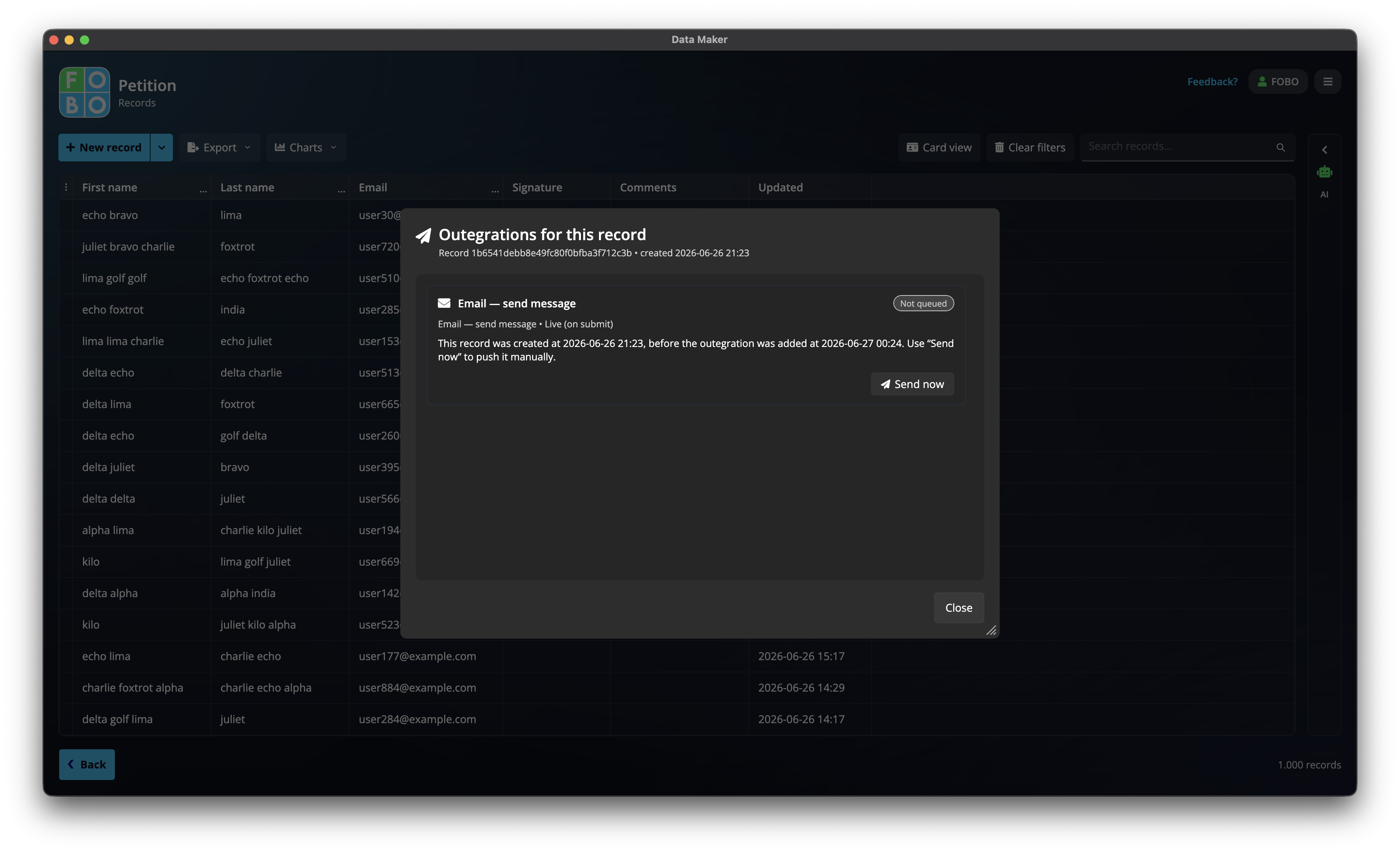
You can find your entries on the records screen, and you set up where they get published in the first place under publishing a form.
Didn't find your answer?
We're happy to help. Open a ticket and we'll get back to you.