Adding & editing a record
This is the window that opens when you add a new entry or open an existing one. It shows your form ready to fill in, exactly as someone answering it would see it, like sitting down with a paper questionnaire and a pen.
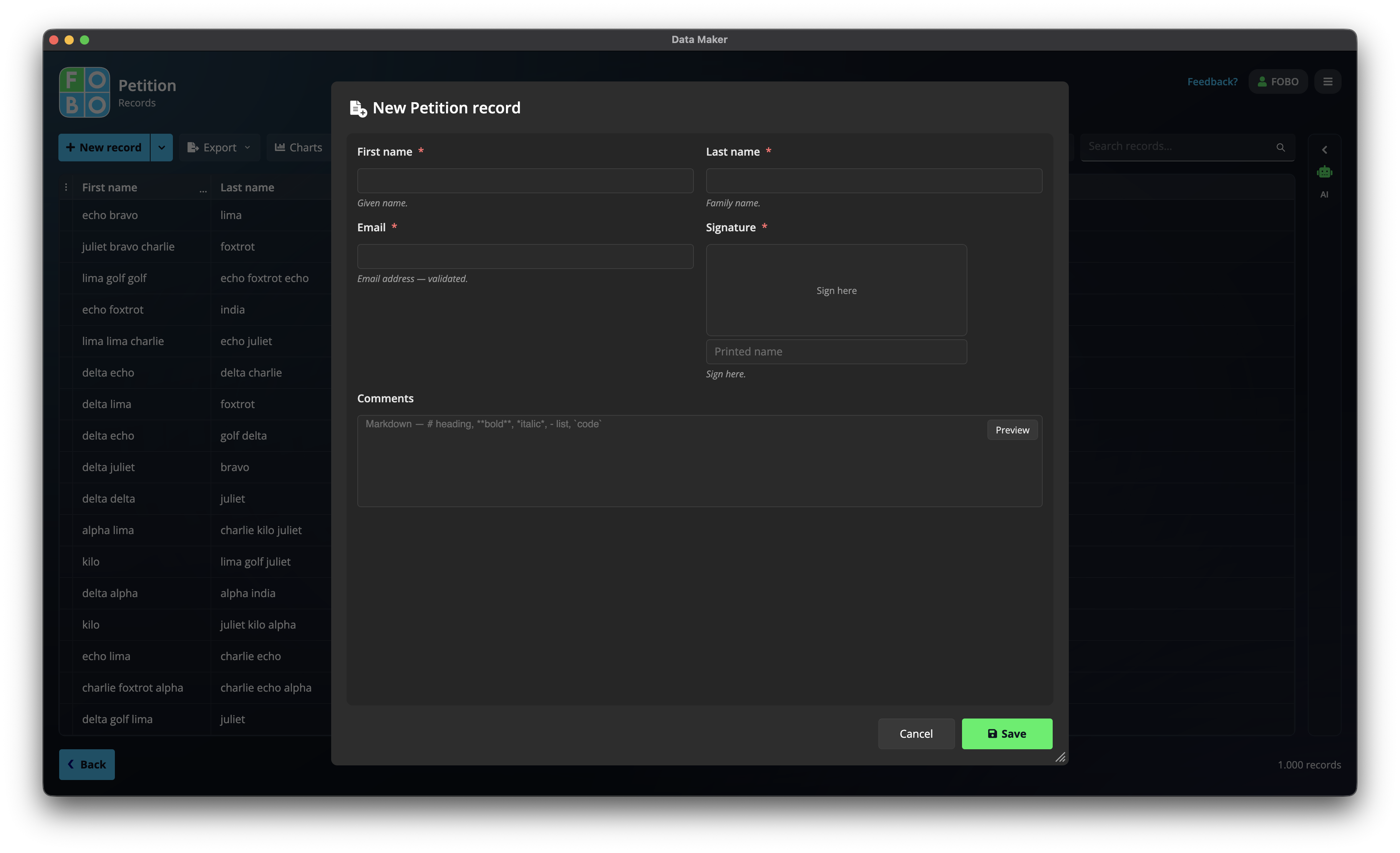
Whether you click New Record for a blank entry or open an existing row from the Records list, you land in the same place: a clean view of your form. Adding and editing work the same way. The only difference is whether the boxes start empty or already filled in.
Filling in the fields
Work your way down the form just as you would on paper. Type into text boxes, pick from dropdown lists, tick checkboxes, choose dates from the little calendar, and so on. Each question shows the kind of answer it expects, so there's nothing to memorise.
Required questions
Some questions are marked as required: they must have an answer before you can save. If you try to save with one of them still empty, the form gently points it out and highlights the question so you can spot it and fill it in.
If saving doesn't seem to work, scroll up and look for a highlighted question. A required answer is probably still blank.
Answers that fill themselves in
A few answers are worked out for you from your other answers: a total, for example, or a result based on what you've already typed. You'll see these update on their own as you go, and you won't be able to type into them. That's by design: they always reflect the latest of your other answers, so there's nothing to keep in sync by hand.
Saving or cancelling
When you're done, you have two choices at the bottom of the window:
| Button | What it does |
|---|---|
| Save | Keeps your answers. A new entry appears as a fresh row in the Records list; an edited one updates in place. |
| Cancel | Closes the window and throws away anything you typed since opening it. Nothing is added or changed. |
The window can be resized: drag its edge or corner to make it bigger. Handy when your form is long or has wide questions you'd rather see all at once.
Where to go next
Once you've saved, your entry shows up back in the Records list. If you'd rather read and edit one entry at a time on a full page, try Card view instead.
Didn't find your answer?
We're happy to help. Open a ticket and we'll get back to you.