The Home screen
This is the shelf where all your forms live. Think of it like the home screen on your phone: each form is a tile you tap to open, and there's a dashboard at the top for the things you check most often.
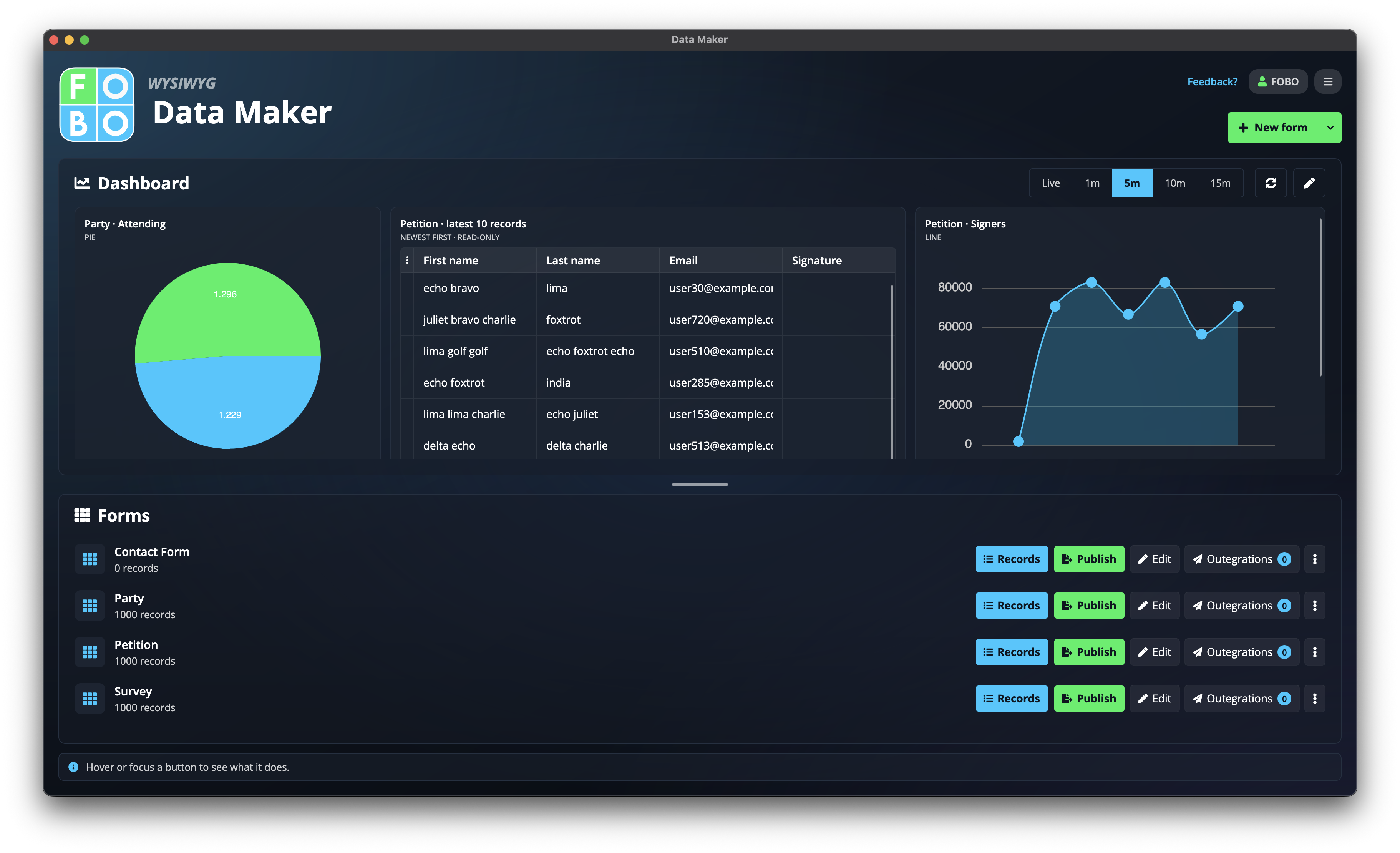
Every time you open Data Maker, this is where you start. Your forms are shown as cards. Open one to add or change its questions, or jump straight to the answers people have given.
Making or opening a form
- Start a new form with the New Form button. You'll give it a name, then land in the builder with a blank page ready for your first question.
- Already have a form file? Use Import to bring in a form someone shared with you (a
.dmffile) and it appears on your shelf. - Open an existing form by clicking its card, or use the buttons on the card to go straight to what you need.
The buttons on each form card
Each form card has a row of actions. Here's what each one does:

| Button | What it does |
|---|---|
| Records | Opens the list of answers collected for this form. This is where you add, edit, search, and export entries. |
| Edit | Opens the Form Builder so you can change the questions, layout, and look of the form. |
| Publish | Shares the form: as a web page, an embed for your own site, a PDF, or other formats. |
| Send onward | Sets up automatic delivery of new entries to other tools, like email or a webhook. (Also called outegrations.) |
| Make a copy | Duplicates the form so you can reuse it as a starting point without touching the original. |
| Delete | Removes the form. You'll be asked to confirm first. |
Deleting a form removes its answers too. If you might want the entries later, export them first from the Records list.
The dashboard at the top
Above your forms is a dashboard you can fold away or fill with handy tiles, like pinning sticky notes and a chart to the top of your filing cabinet so you see the important numbers at a glance.
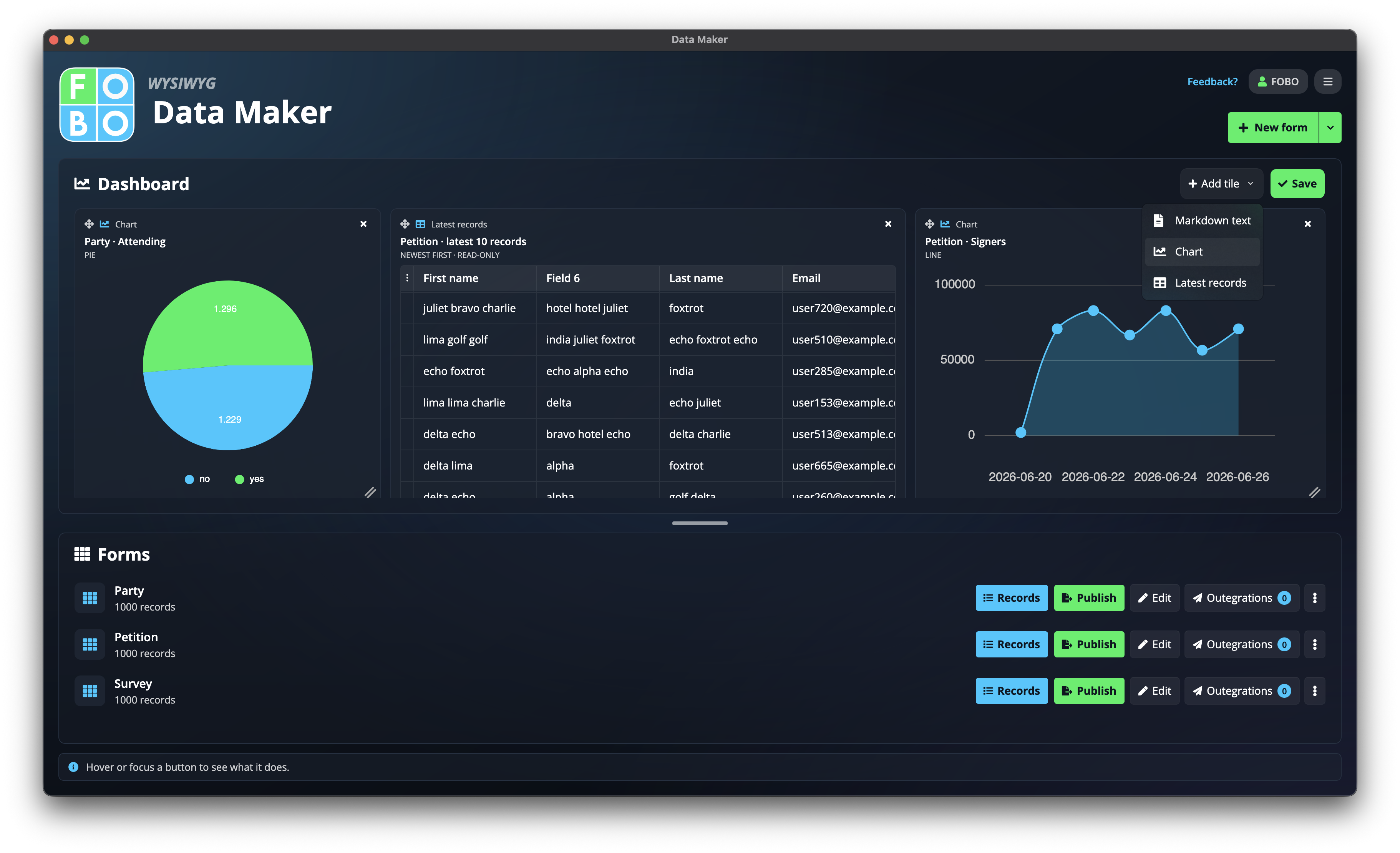
- Edit turns on dashboard editing so you can add or rearrange tiles, then Save locks it back in place.
- Add a tile to show a note (written in plain text), a chart built from one of your forms, or the latest records that have come in.
Don't need the dashboard? Collapse it and your forms slide up to fill the space. It stays collapsed until you open it again.
The menu in the top corner
The icons in the top-right corner are for your account and app-wide options: signing in, your credit balance, and the menu that opens Settings, the About box, and this help.
Didn't find your answer?
We're happy to help. Open a ticket and we'll get back to you.